
Weather App using API (OpenWeatherMap + Retrofit)

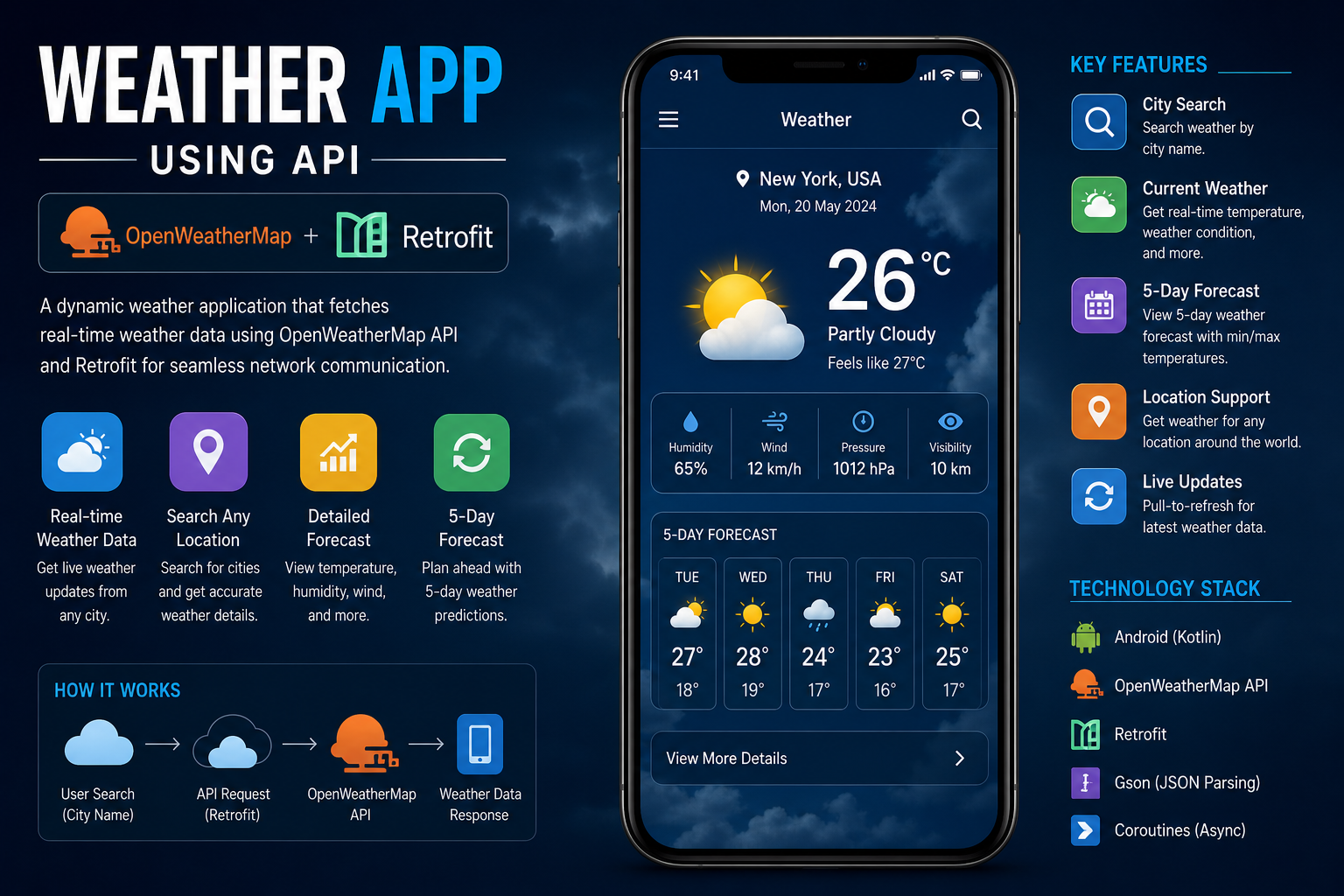
educational implementation of a Weather App using OpenWeatherMap API and Retrofit in Android Kotlin .
Related Posts
I’ll break it down step-by-step so you fully understand how it works.
Prerequisites
- Get API Key from OpenWeatherMap (free tier)
- Add Internet permission in
AndroidManifest.xml
Project Structure (MVVM Pattern)
text
app/
├── manifests/AndroidManifest.xml
├── java/.../
│   ├── data/
│   │   ├── api/WeatherApiService.kt
│   │   ├── model/WeatherResponse.kt
│   │   └── repository/WeatherRepository.kt
│   ├── ui/
│   │   ├── MainActivity.kt
│   │   └── WeatherViewModel.kt
│   └── utils/Constants.kt
└── res/layout/activity_main.xml
Step 1: Add Dependencies (build.gradle.kts – Module level)
kotlin
dependencies {
    // Retrofit for API calls
    implementation("com.squareup.retrofit2:retrofit:2.9.0")
    implementation("com.squareup.retrofit2:converter-gson:2.9.0")

    // Gson for JSON parsing
    implementation("com.google.code.gson:gson:2.10.1")

    // ViewModel and LiveData for architecture
    implementation("androidx.lifecycle:lifecycle-viewmodel-ktx:2.7.0")
    implementation("androidx.lifecycle:lifecycle-livedata-ktx:2.7.0")

    // Coroutines for async operations
    implementation("org.jetbrains.kotlinx:kotlinx-coroutines-android:1.7.3")

    // Glide for loading weather icons
    implementation("com.github.bumptech.glide:glide:4.16.0")
}
Step 2: Add Internet Permission (AndroidManifest.xml)
xml
<uses-permission android:name="android.permission.INTERNET" />

<application
    android:usesCleartextTraffic="true"
    ...>
</application>
Step 3: Create Constants (utils/Constants.kt)
kotlin
package com.yourapp.weatherapp.utils

object Constants {
    const val BASE_URL = "https://api.openweathermap.org/"
    const val API_KEY = "YOUR_API_KEY_HERE"  // Replace with your actual API key
    const val UNITS_METRIC = "metric"
    const val UNITS_IMPERIAL = "imperial"
}
Step 4: Create Data Models (data/model/WeatherResponse.kt)
These classes match the JSON response from OpenWeatherMap API.
kotlin
package com.yourapp.weatherapp.data.model

data class WeatherResponse(
    val name: String,              // City name
    val main: Main,
    val weather: List<Weather>,
    val wind: Wind,
    val cod: Int                   // HTTP status code
)

data class Main(
    val temp: Double,              // Temperature
    val feels_like: Double,        // Feels like temperature
    val humidity: Int              // Humidity percentage
)

data class Weather(
    val main: String,              // Group: "Clear", "Rain", etc.
    val description: String,       // Description: "few clouds"
    val icon: String               // Icon code: "01d", "02n", etc.
)

data class Wind(
    val speed: Double              // Wind speed
)
Step 5: Create Retrofit API Service (data/api/WeatherApiService.kt)
This interface defines the API endpoint.
kotlin
package com.yourapp.weatherapp.data.api

import com.yourapp.weatherapp.data.model.WeatherResponse
import retrofit2.http.GET
import retrofit2.http.Query

interface WeatherApiService {

    @GET("data/2.5/weather")
    suspend fun getWeather(
        @Query("q") cityName: String,
        @Query("appid") apiKey: String,
        @Query("units") units: String = "metric"
    ): WeatherResponse

    @GET("data/2.5/weather")
    suspend fun getWeatherByCoordinates(
        @Query("lat") latitude: Double,
        @Query("lon") longitude: Double,
        @Query("appid") apiKey: String,
        @Query("units") units: String = "metric"
    ): WeatherResponse
}
Step 6: Create Retrofit Instance (data/api/RetrofitInstance.kt)
This sets up the Retrofit client.
kotlin
package com.yourapp.weatherapp.data.api

import com.yourapp.weatherapp.utils.Constants
import retrofit2.Retrofit
import retrofit2.converter.gson.GsonConverterFactory

object RetrofitInstance {

    private val retrofit by lazy {
        Retrofit.Builder()
            .baseUrl(Constants.BASE_URL)
            .addConverterFactory(GsonConverterFactory.create())
            .build()
    }

    val api: WeatherApiService by lazy {
        retrofit.create(WeatherApiService::class.java)
    }
}
Step 7: Create Repository (data/repository/WeatherRepository.kt)
The repository handles data operations and error handling.
kotlin
package com.yourapp.weatherapp.data.repository

import com.yourapp.weatherapp.data.api.RetrofitInstance
import com.yourapp.weatherapp.data.model.WeatherResponse
import com.yourapp.weatherapp.utils.Constants

class WeatherRepository {

    private val apiService = RetrofitInstance.api

    suspend fun getWeatherByCity(cityName: String): Result<WeatherResponse> {
        return try {
            val response = apiService.getWeather(
                cityName = cityName,
                apiKey = Constants.API_KEY,
                units = Constants.UNITS_METRIC
            )
            if (response.cod == 200) {
                Result.success(response)
            } else {
                Result.failure(Exception("Failed to fetch weather data"))
            }
        } catch (e: Exception) {
            Result.failure(e)
        }
    }

    suspend fun getWeatherByLocation(latitude: Double, longitude: Double): Result<WeatherResponse> {
        return try {
            val response = apiService.getWeatherByCoordinates(
                latitude = latitude,
                longitude = longitude,
                apiKey = Constants.API_KEY,
                units = Constants.UNITS_METRIC
            )
            if (response.cod == 200) {
                Result.success(response)
            } else {
                Result.failure(Exception("Failed to fetch weather data"))
            }
        } catch (e: Exception) {
            Result.failure(e)
        }
    }
}
Step 8: Create ViewModel (ui/WeatherViewModel.kt)
The ViewModel manages UI-related data and survives configuration changes.
kotlin
package com.yourapp.weatherapp.ui

import androidx.lifecycle.LiveData
import androidx.lifecycle.MutableLiveData
import androidx.lifecycle.ViewModel
import androidx.lifecycle.viewModelScope
import com.yourapp.weatherapp.data.model.WeatherResponse
import com.yourapp.weatherapp.data.repository.WeatherRepository
import kotlinx.coroutines.launch

class WeatherViewModel : ViewModel() {

    private val repository = WeatherRepository()

    // LiveData for UI
    private val _weatherData = MutableLiveData<WeatherResponse>()
    val weatherData: LiveData<WeatherResponse> = _weatherData

    private val _isLoading = MutableLiveData<Boolean>()
    val isLoading: LiveData<Boolean> = _isLoading

    private val _errorMessage = MutableLiveData<String>()
    val errorMessage: LiveData<String> = _errorMessage

    fun fetchWeatherByCity(cityName: String) {
        viewModelScope.launch {
            _isLoading.value = true
            val result = repository.getWeatherByCity(cityName)

            result.onSuccess { weatherResponse ->
                _weatherData.value = weatherResponse
                _errorMessage.value = null
            }.onFailure { exception ->
                _errorMessage.value = exception.message ?: "Unknown error occurred"
            }

            _isLoading.value = false
        }
    }

    fun fetchWeatherByLocation(latitude: Double, longitude: Double) {
        viewModelScope.launch {
            _isLoading.value = true
            val result = repository.getWeatherByLocation(latitude, longitude)

            result.onSuccess { weatherResponse ->
                _weatherData.value = weatherResponse
                _errorMessage.value = null
            }.onFailure { exception ->
                _errorMessage.value = exception.message ?: "Unknown error occurred"
            }

            _isLoading.value = false
        }
    }
}
Step 9: Create Layout (res/layout/activity_main.xml)
xml
<?xml version="1.0" encoding="utf-8"?>
<LinearLayout xmlns:android="http://schemas.android.com/apk/res/android"
    xmlns:app="http://schemas.android.com/apk/res-auto"
    android:layout_width="match_parent"
    android:layout_height="match_parent"
    android:orientation="vertical"
    android:padding="16dp"
    android:background="@drawable/weather_background">

    <!-- Search Section -->
    <LinearLayout
        android:layout_width="match_parent"
        android:layout_height="wrap_content"
        android:orientation="horizontal">

        <EditText
            android:id="@+id/etCityName"
            android:layout_width="0dp"
            android:layout_height="wrap_content"
            android:layout_weight="1"
            android:hint="Enter city name"
            android:padding="12dp"
            android:background="@drawable/edit_text_border"/>

        <Button
            android:id="@+id/btnSearch"
            android:layout_width="wrap_content"
            android:layout_height="wrap_content"
            android:text="Search" />
    </LinearLayout>

    <!-- Loading Indicator -->
    <ProgressBar
        android:id="@+id/progressBar"
        android:layout_width="wrap_content"
        android:layout_height="wrap_content"
        android:layout_gravity="center"
        android:layout_marginTop="32dp"
        android:visibility="gone"/>

    <!-- Weather Display Section -->
    <LinearLayout
        android:id="@+id/weatherContainer"
        android:layout_width="match_parent"
        android:layout_height="wrap_content"
        android:layout_marginTop="32dp"
        android:orientation="vertical"
        android:gravity="center"
        android:visibility="gone">

        <TextView
            android:id="@+id/tvCityName"
            android:layout_width="wrap_content"
            android:layout_height="wrap_content"
            android:textSize="28sp"
            android:textStyle="bold"/>

        <ImageView
            android:id="@+id/ivWeatherIcon"
            android:layout_width="100dp"
            android:layout_height="100dp"/>

        <TextView
            android:id="@+id/tvTemperature"
            android:layout_width="wrap_content"
            android:layout_height="wrap_content"
            android:textSize="48sp"
            android:textStyle="bold"/>

        <TextView
            android:id="@+id/tvFeelsLike"
            android:layout_width="wrap_content"
            android:layout_height="wrap_content"
            android:textSize="18sp"/>

        <TextView
            android:id="@+id/tvWeatherDescription"
            android:layout_width="wrap_content"
            android:layout_height="wrap_content"
            android:textSize="20sp"/>

        <TextView
            android:id="@+id/tvHumidity"
            android:layout_width="wrap_content"
            android:layout_height="wrap_content"
            android:textSize="16sp"
            android:layout_marginTop="8dp"/>

        <TextView
            android:id="@+id/tvWindSpeed"
            android:layout_width="wrap_content"
            android:layout_height="wrap_content"
            android:textSize="16sp"/>
    </LinearLayout>

    <!-- Error Message -->
    <TextView
        android:id="@+id/tvError"
        android:layout_width="match_parent"
        android:layout_height="wrap_content"
        android:layout_marginTop="16dp"
        android:textColor="#FF0000"
        android:textAlignment="center"
        android:visibility="gone"/>
</LinearLayout>
Step 10: Create MainActivity (ui/MainActivity.kt)
This connects everything together.
kotlin
package com.yourapp.weatherapp.ui

import android.os.Bundle
import android.view.View
import android.widget.*
import androidx.appcompat.app.AppCompatActivity
import androidx.lifecycle.Observer
import androidx.lifecycle.ViewModelProvider
import com.bumptech.glide.Glide
import com.yourapp.weatherapp.R
import com.yourapp.weatherapp.utils.Constants

class MainActivity : AppCompatActivity() {

    private lateinit var viewModel: WeatherViewModel

    // UI Components
    private lateinit var etCityName: EditText
    private lateinit var btnSearch: Button
    private lateinit var progressBar: ProgressBar
    private lateinit var weatherContainer: LinearLayout
    private lateinit var tvCityName: TextView
    private lateinit var ivWeatherIcon: ImageView
    private lateinit var tvTemperature: TextView
    private lateinit var tvFeelsLike: TextView
    private lateinit var tvWeatherDescription: TextView
    private lateinit var tvHumidity: TextView
    private lateinit var tvWindSpeed: TextView
    private lateinit var tvError: TextView

    override fun onCreate(savedInstanceState: Bundle savedInstanceState) {
        super.onCreate(savedInstanceState)
        setContentView(R.layout.activity_main)

        initializeViews()
        setupViewModel()
        setupObservers()
        setupListeners()
    }

    private fun initializeViews() {
        etCityName = findViewById(R.id.etCityName)
        btnSearch = findViewById(R.id.btnSearch)
        progressBar = findViewById(R.id.progressBar)
        weatherContainer = findViewById(R.id.weatherContainer)
        tvCityName = findViewById(R.id.tvCityName)
        ivWeatherIcon = findViewById(R.id.ivWeatherIcon)
        tvTemperature = findViewById(R.id.tvTemperature)
        tvFeelsLike = findViewById(R.id.tvFeelsLike)
        tvWeatherDescription = findViewById(R.id.tvWeatherDescription)
        tvHumidity = findViewById(R.id.tvHumidity)
        tvWindSpeed = findViewById(R.id.tvWindSpeed)
        tvError = findViewById(R.id.tvError)
    }

    private fun setupViewModel() {
        viewModel = ViewModelProvider(this)[WeatherViewModel::class.java]
    }

    private fun setupObservers() {
        // Observe weather data
        viewModel.weatherData.observe(this, Observer { weatherResponse ->
            if (weatherResponse != null) {
                displayWeatherData(weatherResponse)
            }
        })

        // Observe loading state
        viewModel.isLoading.observe(this, Observer { isLoading ->
            if (isLoading) {
                progressBar.visibility = View.VISIBLE
                weatherContainer.visibility = View.GONE
                tvError.visibility = View.GONE
            } else {
                progressBar.visibility = View.GONE
            }
        })

        // Observe error messages
        viewModel.errorMessage.observe(this, Observer { errorMsg ->
            if (!errorMsg.isNullOrEmpty()) {
                tvError.text = errorMsg
                tvError.visibility = View.VISIBLE
                weatherContainer.visibility = View.GONE
            } else {
                tvError.visibility = View.GONE
            }
        })
    }

    private fun setupListeners() {
        btnSearch.setOnClickListener {
            val cityName = etCityName.text.toString().trim()
            if (cityName.isNotEmpty()) {
                viewModel.fetchWeatherByCity(cityName)
            } else {
                Toast.makeText(this, "Please enter a city name", Toast.LENGTH_SHORT).show()
            }
        }
    }

    private fun displayWeatherData(weatherResponse: WeatherResponse) {
        weatherContainer.visibility = View.VISIBLE

        // City name
        tvCityName.text = weatherResponse.name

        // Temperature (rounded to 1 decimal)
        val temperature = weatherResponse.main.temp
        tvTemperature.text = String.format("%.1f°C", temperature)

        // Feels like temperature
        val feelsLike = weatherResponse.main.feels_like
        tvFeelsLike.text = String.format("Feels like: %.1f°C", feelsLike)

        // Weather description (capitalize first letter)
        val description = weatherResponse.weather.firstOrNull()?.description ?: ""
        tvWeatherDescription.text = description.replaceFirstChar { if (it.isLowerCase()) it.titlecase() else it.toString() }

        // Humidity
        tvHumidity.text = String.format("Humidity: %d%%", weatherResponse.main.humidity)

        // Wind speed
        tvWindSpeed.text = String.format("Wind Speed: %.1f m/s", weatherResponse.wind.speed)

        // Weather icon
        val iconCode = weatherResponse.weather.firstOrNull()?.icon ?: ""
        val iconUrl = "https://openweathermap.org/img/w/$iconCode.png"

        Glide.with(this)
            .load(iconUrl)
            .into(ivWeatherIcon)
    }
}
How It Works – Understanding the Flow
- User Action: User enters a city name and clicks the Search button.
- UI to ViewModel: The Activity calls
viewModel.fetchWeatherByCity(cityName). - ViewModel to Repository: ViewModel launches a coroutine and calls
repository.getWeatherByCity(). - Repository to API: Repository uses Retrofit to make a network request to OpenWeatherMap API.
- API Response: Retrofit converts the JSON response into
WeatherResponsedata class objects. - Result Handling:
- If successful, the data flows back through Repository to ViewModel.
- If failed, an error message flows back.
- LiveData Update: ViewModel updates its LiveData objects (
_weatherData,_isLoading,_errorMessage). - UI Update: MainActivity observes LiveData changes and updates the UI accordingly.
Key Concepts Explained
Retrofit
- Simplifies making HTTP requests
- Converts JSON responses into Kotlin data classes automatically
- Uses annotations like
@GET,@Queryto define API endpoints
Coroutines
- Handle asynchronous operations without blocking the main thread
suspendfunctions can be paused and resumedviewModelScopeautomatically cancels coroutines when ViewModel is destroyed
LiveData
- Observable data holder that respects lifecycle
- UI components observe LiveData and update automatically
- Prevents memory leaks and crashes
MVVM Architecture
- Model: Data layer (API, Repository)
- View: UI layer (Activity, XML layouts)
- ViewModel: Bridge between Model and View, holds UI data
Testing the App
- Replace
YOUR_API_KEY_HEREinConstants.ktwith your actual OpenWeatherMap API key. - Run the app on an emulator or physical device.
- Enter a city name (e.g., “London”, “Tokyo”, “New York”).
- Click Search to see the weather information.
Common Issues and Solutions
Issue: NetworkOnMainThreadException
- Solution: Always use coroutines or other background threading for network calls. The implementation above uses
suspendfunctions.
Issue: API key not working
- Solution: Ensure your API key is activated (can take a few hours after registration). Check you’re using the correct endpoint.
Issue: JSON parsing error
- Solution: Verify that your data classes match the exact JSON structure from the API response.
