

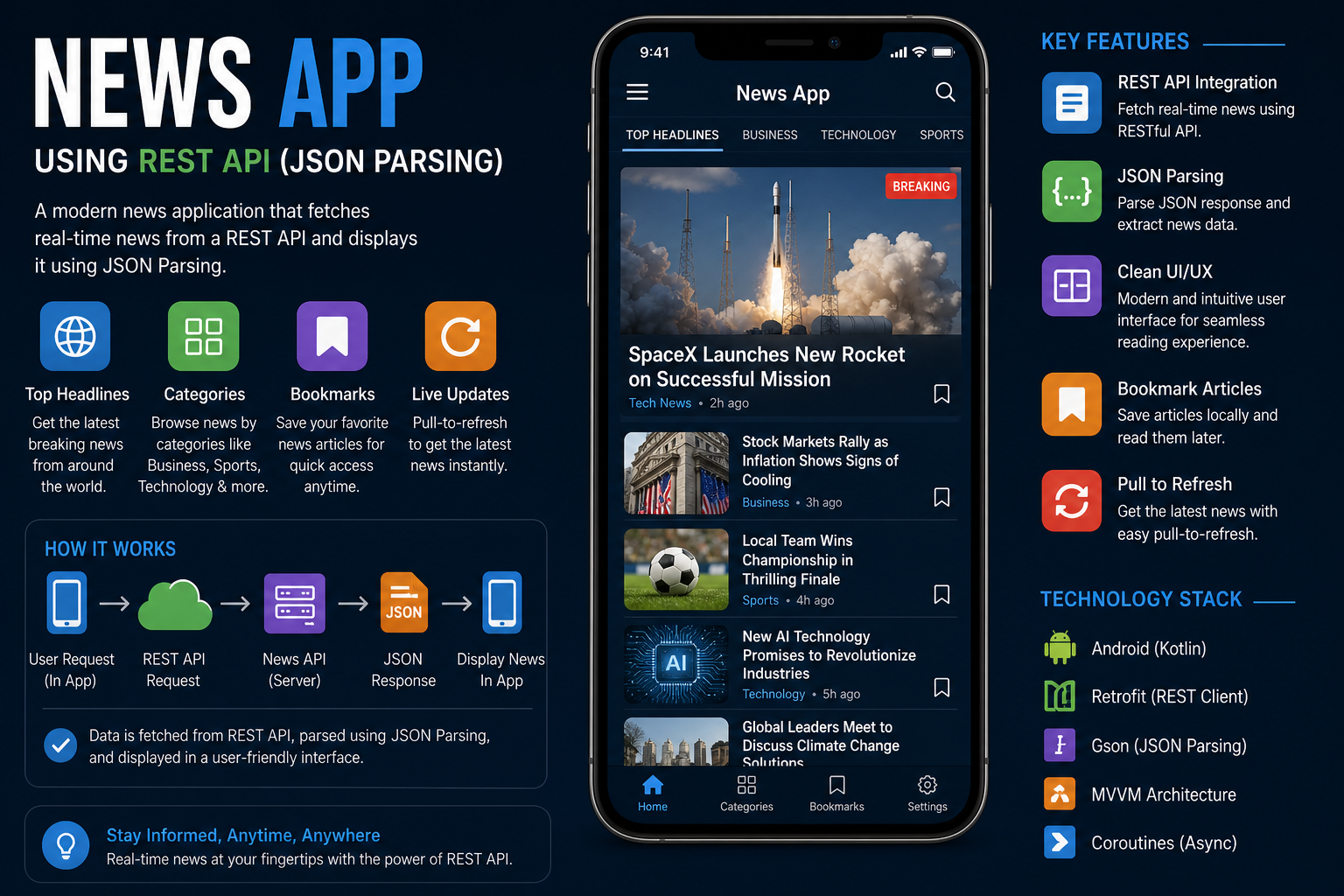
News App using REST API (JSON Parsing)
educational implementation of a News App using a REST API with JSON parsing in Android Kotlin. I’ll use the GNews API (free, no API key required for limited usage) or NewsAPI.org (requires free API key).
Prerequisites
- Get API Key from NewsAPI.org (free tier – 100 requests/day) or use GNews API
- Add Internet permission in
AndroidManifest.xml
Project Structure (MVVM Pattern)
text
app/
├── manifests/AndroidManifest.xml
├── java/.../
│   ├── data/
│   │   ├── api/NewsApiService.kt
│   │   ├── model/NewsResponse.kt
│   │   ├── model/Article.kt
│   │   └── repository/NewsRepository.kt
│   ├── ui/
│   │   ├── MainActivity.kt
│   │   ├── NewsViewModel.kt
│   │   └── NewsAdapter.kt
│   └── utils/Constants.kt
└── res/layout/
    ├── activity_main.xml
    └── item_news.xml
Step 1: Add Dependencies (build.gradle.kts – Module level)
kotlin
dependencies {
    // Retrofit for API calls
    implementation("com.squareup.retrofit2:retrofit:2.9.0")
    implementation("com.squareup.retrofit2:converter-gson:2.9.0")

    // Gson for JSON parsing
    implementation("com.google.code.gson:gson:2.10.1")

    // ViewModel and LiveData
    implementation("androidx.lifecycle:lifecycle-viewmodel-ktx:2.7.0")
    implementation("androidx.lifecycle:lifecycle-livedata-ktx:2.7.0")

    // Coroutines
    implementation("org.jetbrains.kotlinx:kotlinx-coroutines-android:1.7.3")

    // RecyclerView
    implementation("androidx.recyclerview:recyclerview:1.3.2")

    // CardView
    implementation("androidx.cardview:cardview:1.0.0")

    // Glide for loading images
    implementation("com.github.bumptech.glide:glide:4.16.0")

    // Swipe to refresh layout
    implementation("androidx.swiperefreshlayout:swiperefreshlayout:1.1.0")
}
Step 2: Add Internet Permission (AndroidManifest.xml)
xml
<uses-permission android:name="android.permission.INTERNET" />

<application
    android:usesCleartextTraffic="true"
    ...>
Step 3: Create Constants (utils/Constants.kt)
kotlin
package com.yourapp.newsapp.utils

object Constants {
    // For NewsAPI.org (requires API key)
    const val NEWS_API_BASE_URL = "https://newsapi.org/v2/"
    const val NEWS_API_KEY = "YOUR_API_KEY_HERE"  // Get from newsapi.org

    // Alternative: GNews API (free, no key required for basic usage)
    // const val GNEWS_BASE_URL = "https://gnews.io/api/v4/"

    // Categories
    val CATEGORIES = listOf(
        "General", "Business", "Technology", "Entertainment",
        "Sports", "Science", "Health"
    )

    // Countries
    val COUNTRIES = mapOf(
        "US" to "United States",
        "GB" to "United Kingdom",
        "IN" to "India",
        "CA" to "Canada",
        "AU" to "Australia",
        "DE" to "Germany",
        "FR" to "France"
    )
}
Step 4: Create Data Models (data/model/)
Article.kt
kotlin
package com.yourapp.newsapp.data.model

import com.google.gson.annotations.SerializedName

data class Article(
    @SerializedName("source")
    val source: Source?,

    @SerializedName("author")
    val author: String?,

    @SerializedName("title")
    val title: String?,

    @SerializedName("description")
    val description: String?,

    @SerializedName("url")
    val url: String?,

    @SerializedName("urlToImage")
    val urlToImage: String?,

    @SerializedName("publishedAt")
    val publishedAt: String?,

    @SerializedName("content")
    val content: String?
)

data class Source(
    @SerializedName("id")
    val id: String?,

    @SerializedName("name")
    val name: String?
)
NewsResponse.kt
kotlin
package com.yourapp.newsapp.data.model

import com.google.gson.annotations.SerializedName

data class NewsResponse(
    @SerializedName("status")
    val status: String,

    @SerializedName("totalResults")
    val totalResults: Int,

    @SerializedName("articles")
    val articles: List<Article>,

    @SerializedName("code")
    val code: String?,

    @SerializedName("message")
    val message: String?
)
Step 5: Create API Service (data/api/NewsApiService.kt)
kotlin
package com.yourapp.newsapp.data.api

import com.yourapp.newsapp.data.model.NewsResponse
import retrofit2.http.GET
import retrofit2.http.Query

interface NewsApiService {

    @GET("top-headlines")
    suspend fun getTopHeadlines(
        @Query("country") country: String = "us",
        @Query("category") category: String? = null,
        @Query("apiKey") apiKey: String,
        @Query("pageSize") pageSize: Int = 20,
        @Query("page") page: Int = 1
    ): NewsResponse

    @GET("everything")
    suspend fun searchNews(
        @Query("q") query: String,
        @Query("apiKey") apiKey: String,
        @Query("pageSize") pageSize: Int = 20,
        @Query("page") page: Int = 1
    ): NewsResponse

    @GET("top-headlines")
    suspend fun getNewsByCategory(
        @Query("country") country: String,
        @Query("category") category: String,
        @Query("apiKey") apiKey: String,
        @Query("pageSize") pageSize: Int = 20
    ): NewsResponse
}
Step 6: Create Retrofit Instance (data/api/RetrofitInstance.kt)
kotlin
package com.yourapp.newsapp.data.api

import com.yourapp.newsapp.utils.Constants
import retrofit2.Retrofit
import retrofit2.converter.gson.GsonConverterFactory

object RetrofitInstance {

    private val retrofit by lazy {
        Retrofit.Builder()
            .baseUrl(Constants.NEWS_API_BASE_URL)
            .addConverterFactory(GsonConverterFactory.create())
            .build()
    }

    val api: NewsApiService by lazy {
        retrofit.create(NewsApiService::class.java)
    }
}
Step 7: Create Repository (data/repository/NewsRepository.kt)
kotlin
package com.yourapp.newsapp.data.repository

import com.yourapp.newsapp.data.api.RetrofitInstance
import com.yourapp.newsapp.data.model.NewsResponse
import com.yourapp.newsapp.utils.Constants

class NewsRepository {

    private val apiService = RetrofitInstance.api

    suspend fun getTopHeadlines(
        country: String = "us",
        category: String? = null
    ): Result<NewsResponse> {
        return try {
            val response = apiService.getTopHeadlines(
                country = country,
                category = category,
                apiKey = Constants.NEWS_API_KEY
            )

            if (response.status == "ok") {
                Result.success(response)
            } else {
                Result.failure(Exception(response.message ?: "Failed to fetch news"))
            }
        } catch (e: Exception) {
            Result.failure(e)
        }
    }

    suspend fun searchNews(query: String): Result<NewsResponse> {
        return try {
            val response = apiService.searchNews(
                query = query,
                apiKey = Constants.NEWS_API_KEY
            )

            if (response.status == "ok") {
                Result.success(response)
            } else {
                Result.failure(Exception(response.message ?: "Search failed"))
            }
        } catch (e: Exception) {
            Result.failure(e)
        }
    }

    suspend fun getNewsByCategory(category: String, country: String = "us"): Result<NewsResponse> {
        return try {
            val response = apiService.getNewsByCategory(
                country = country,
                category = category.lowercase(),
                apiKey = Constants.NEWS_API_KEY
            )

            if (response.status == "ok") {
                Result.success(response)
            } else {
                Result.failure(Exception(response.message ?: "Failed to fetch category news"))
            }
        } catch (e: Exception) {
            Result.failure(e)
        }
    }
}
Step 8: Create ViewModel (ui/NewsViewModel.kt)
kotlin
package com.yourapp.newsapp.ui

import androidx.lifecycle.LiveData
import androidx.lifecycle.MutableLiveData
import androidx.lifecycle.ViewModel
import androidx.lifecycle.viewModelScope
import com.yourapp.newsapp.data.model.Article
import com.yourapp.newsapp.data.repository.NewsRepository
import kotlinx.coroutines.launch

class NewsViewModel : ViewModel() {

    private val repository = NewsRepository()

    private val _newsArticles = MutableLiveData<List<Article>>()
    val newsArticles: LiveData<List<Article>> = _newsArticles

    private val _isLoading = MutableLiveData<Boolean>()
    val isLoading: LiveData<Boolean> = _isLoading

    private val _errorMessage = MutableLiveData<String>()
    val errorMessage: LiveData<String> = _errorMessage

    private val _currentCategory = MutableLiveData<String>("General")
    val currentCategory: LiveData<String> = _currentCategory

    private val _isSearching = MutableLiveData<Boolean>()
    val isSearching: LiveData<Boolean> = _isSearching

    init {
        fetchTopHeadlines()
    }

    fun fetchTopHeadlines(country: String = "us") {
        viewModelScope.launch {
            _isLoading.value = true
            _isSearching.value = false

            val result = repository.getTopHeadlines(country)

            result.onSuccess { newsResponse ->
                _newsArticles.value = newsResponse.articles
                _errorMessage.value = null
            }.onFailure { exception ->
                _errorMessage.value = exception.message ?: "Failed to load news"
                _newsArticles.value = emptyList()
            }

            _isLoading.value = false
        }
    }

    fun fetchNewsByCategory(category: String, country: String = "us") {
        viewModelScope.launch {
            _isLoading.value = true
            _isSearching.value = false
            _currentCategory.value = category

            val result = repository.getNewsByCategory(category, country)

            result.onSuccess { newsResponse ->
                _newsArticles.value = newsResponse.articles
                _errorMessage.value = null
            }.onFailure { exception ->
                _errorMessage.value = exception.message ?: "Failed to load $category news"
                _newsArticles.value = emptyList()
            }

            _isLoading.value = false
        }
    }

    fun searchNews(query: String) {
        if (query.trim().isEmpty()) {
            fetchTopHeadlines()
            return
        }

        viewModelScope.launch {
            _isLoading.value = true
            _isSearching.value = true

            val result = repository.searchNews(query)

            result.onSuccess { newsResponse ->
                _newsArticles.value = newsResponse.articles
                _errorMessage.value = null
            }.onFailure { exception ->
                _errorMessage.value = exception.message ?: "Search failed"
                _newsArticles.value = emptyList()
            }

            _isLoading.value = false
        }
    }

    fun refreshNews() {
        if (_isSearching.value == true) {
            // If currently searching, we don't know the search query
            // In a real app, you'd store the last search query
            fetchTopHeadlines()
        } else {
            fetchNewsByCategory(_currentCategory.value ?: "General")
        }
    }
}
Step 9: Create News Adapter (ui/NewsAdapter.kt)
kotlin
package com.yourapp.newsapp.ui

import android.view.LayoutInflater
import android.view.View
import android.view.ViewGroup
import android.widget.ImageView
import android.widget.TextView
import androidx.recyclerview.widget.RecyclerView
import com.bumptech.glide.Glide
import com.yourapp.newsapp.R
import com.yourapp.newsapp.data.model.Article
import java.text.SimpleDateFormat
import java.util.*

class NewsAdapter(
    private var articles: List<Article>,
    private val onItemClick: (Article) -> Unit
) : RecyclerView.Adapter<NewsAdapter.NewsViewHolder>() {

    override fun onCreateViewHolder(parent: ViewGroup, viewType: Int): NewsViewHolder {
        val view = LayoutInflater.from(parent.context)
            .inflate(R.layout.item_news, parent, false)
        return NewsViewHolder(view)
    }

    override fun onBindViewHolder(holder: NewsViewHolder, position: Int) {
        val article = articles[position]
        holder.bind(article)
        holder.itemView.setOnClickListener { onItemClick(article) }
    }

    override fun getItemCount(): Int = articles.size

    fun updateArticles(newArticles: List<Article>) {
        articles = newArticles
        notifyDataSetChanged()
    }

    class NewsViewHolder(itemView: View) : RecyclerView.ViewHolder(itemView) {
        private val ivNewsImage: ImageView = itemView.findViewById(R.id.ivNewsImage)
        private val tvTitle: TextView = itemView.findViewById(R.id.tvTitle)
        private val tvDescription: TextView = itemView.findViewById(R.id.tvDescription)
        private val tvSource: TextView = itemView.findViewById(R.id.tvSource)
        private val tvTime: TextView = itemView.findViewById(R.id.tvTime)

        fun bind(article: Article) {
            tvTitle.text = article.title ?: "No title"
            tvDescription.text = article.description ?: "No description available"
            tvSource.text = article.source?.name ?: "Unknown source"

            // Format the published date
            article.publishedAt?.let { dateString ->
                tvTime.text = formatDate(dateString)
            } ?: run {
                tvTime.text = "Unknown date"
            }

            // Load image using Glide
            article.urlToImage?.let { imageUrl ->
                Glide.with(itemView.context)
                    .load(imageUrl)
                    .placeholder(R.drawable.placeholder_image)
                    .error(R.drawable.error_image)
                    .into(ivNewsImage)
            } ?: run {
                ivNewsImage.setImageResource(R.drawable.placeholder_image)
            }
        }

        private fun formatDate(dateString: String): String {
            return try {
                val inputFormat = SimpleDateFormat("yyyy-MM-dd'T'HH:mm:ss'Z'", Locale.getDefault())
                inputFormat.timeZone = TimeZone.getTimeZone("UTC")
                val date = inputFormat.parse(dateString)

                val outputFormat = SimpleDateFormat("MMM dd, yyyy • hh:mm a", Locale.getDefault())
                outputFormat.format(date ?: Date())
            } catch (e: Exception) {
                dateString.substring(0, minOf(10, dateString.length))
            }
        }
    }
}
Step 10: Create Layout Files
activity_main.xml
xml
<?xml version="1.0" encoding="utf-8"?>
<LinearLayout xmlns:android="http://schemas.android.com/apk/res/android"
    xmlns:app="http://schemas.android.com/apk/res-auto"
    android:layout_width="match_parent"
    android:layout_height="match_parent"
    android:orientation="vertical">

    <!-- Toolbar -->
    <androidx.appcompat.widget.Toolbar
        android:id="@+id/toolbar"
        android:layout_width="match_parent"
        android:layout_height="?attr/actionBarSize"
        android:background="?attr/colorPrimary"
        android:theme="@style/ThemeOverlay.AppCompat.Dark.ActionBar"
        app:title="News App" />

    <!-- Search Section -->
    <LinearLayout
        android:layout_width="match_parent"
        android:layout_height="wrap_content"
        android:orientation="horizontal"
        android:padding="8dp">

        <EditText
            android:id="@+id/etSearch"
            android:layout_width="0dp"
            android:layout_height="wrap_content"
            android:layout_weight="1"
            android:hint="Search news..."
            android:padding="12dp"
            android:background="@drawable/edit_text_border"
            android:imeOptions="actionSearch"
            android:inputType="text"/>

        <Button
            android:id="@+id/btnSearch"
            android:layout_width="wrap_content"
            android:layout_height="wrap_content"
            android:text="Search" />
    </LinearLayout>

    <!-- Category Chips -->
    <com.google.android.material.chip.ChipGroup
        android:id="@+id/chipGroupCategories"
        android:layout_width="match_parent"
        android:layout_height="wrap_content"
        android:padding="8dp"
        app:singleSelection="true"
        app:selectionRequired="false"/>

    <!-- Swipe to Refresh Layout -->
    <androidx.swiperefreshlayout.widget.SwipeRefreshLayout
        android:id="@+id/swipeRefreshLayout"
        android:layout_width="match_parent"
        android:layout_height="0dp"
        android:layout_weight="1">

        <androidx.recyclerview.widget.RecyclerView
            android:id="@+id/rvNews"
            android:layout_width="match_parent"
            android:layout_height="match_parent"
            android:padding="8dp"/>

    </androidx.swiperefreshlayout.widget.SwipeRefreshLayout>

    <!-- Loading Indicator -->
    <ProgressBar
        android:id="@+id/progressBar"
        android:layout_width="wrap_content"
        android:layout_height="wrap_content"
        android:layout_gravity="center"
        android:visibility="gone"/>

    <!-- Error Message -->
    <TextView
        android:id="@+id/tvError"
        android:layout_width="match_parent"
        android:layout_height="wrap_content"
        android:layout_gravity="center"
        android:gravity="center"
        android:padding="16dp"
        android:textColor="#FF0000"
        android:textSize="16sp"
        android:visibility="gone"/>

</LinearLayout>
item_news.xml
xml
<?xml version="1.0" encoding="utf-8"?>
<androidx.cardview.widget.CardView xmlns:android="http://schemas.android.com/apk/res/android"
    xmlns:app="http://schemas.android.com/apk/res-auto"
    android:layout_width="match_parent"
    android:layout_height="wrap_content"
    android:layout_margin="8dp"
    app:cardCornerRadius="8dp"
    app:cardElevation="4dp">

    <LinearLayout
        android:layout_width="match_parent"
        android:layout_height="wrap_content"
        android:orientation="vertical">

        <!-- News Image -->
        <ImageView
            android:id="@+id/ivNewsImage"
            android:layout_width="match_parent"
            android:layout_height="200dp"
            android:scaleType="centerCrop"
            android:src="@drawable/placeholder_image" />

        <LinearLayout
            android:layout_width="match_parent"
            android:layout_height="wrap_content"
            android:orientation="vertical"
            android:padding="12dp">

            <!-- Title -->
            <TextView
                android:id="@+id/tvTitle"
                android:layout_width="match_parent"
                android:layout_height="wrap_content"
                android:textSize="18sp"
                android:textStyle="bold"
                android:maxLines="2"
                android:ellipsize="end" />

            <!-- Description -->
            <TextView
                android:id="@+id/tvDescription"
                android:layout_width="match_parent"
                android:layout_height="wrap_content"
                android:layout_marginTop="8dp"
                android:textSize="14sp"
                android:maxLines="3"
                android:ellipsize="end" />

            <!-- Source and Time -->
            <LinearLayout
                android:layout_width="match_parent"
                android:layout_height="wrap_content"
                android:layout_marginTop="12dp"
                android:orientation="horizontal">

                <TextView
                    android:id="@+id/tvSource"
                    android:layout_width="0dp"
                    android:layout_height="wrap_content"
                    android:layout_weight="1"
                    android:textSize="12sp"
                    android:textColor="#666666" />

                <TextView
                    android:id="@+id/tvTime"
                    android:layout_width="wrap_content"
                    android:layout_height="wrap_content"
                    android:textSize="12sp"
                    android:textColor="#888888" />
            </LinearLayout>

        </LinearLayout>

    </LinearLayout>

</androidx.cardview.widget.CardView>
Drawable resources (res/drawable/)
edit_text_border.xml
xml
<?xml version="1.0" encoding="utf-8"?>
<shape xmlns:android="http://schemas.android.com/apk/res/android">
    <solid android:color="@android:color/white" />
    <stroke android:width="1dp" android:color="#CCCCCC" />
    <corners android:radius="4dp" />
</shape>
placeholder_image.xml (vector drawable or use a PNG)
Step 11: Create MainActivity (ui/MainActivity.kt)
kotlin
package com.yourapp.newsapp.ui

import android.content.Intent
import android.net.Uri
import android.os.Bundle
import android.view.View
import android.widget.*
import androidx.appcompat.app.AppCompatActivity
import androidx.lifecycle.Observer
import androidx.lifecycle.ViewModelProvider
import androidx.recyclerview.widget.LinearLayoutManager
import androidx.recyclerview.widget.RecyclerView
import androidx.swiperefreshlayout.widget.SwipeRefreshLayout
import com.google.android.material.chip.Chip
import com.google.android.material.chip.ChipGroup
import com.yourapp.newsapp.R
import com.yourapp.newsapp.data.model.Article
import com.yourapp.newsapp.utils.Constants

class MainActivity : AppCompatActivity() {

    private lateinit var viewModel: NewsViewModel
    private lateinit var newsAdapter: NewsAdapter
    private lateinit var recyclerView: RecyclerView
    private lateinit var swipeRefreshLayout: SwipeRefreshLayout
    private lateinit var progressBar: ProgressBar
    private lateinit var tvError: TextView
    private lateinit var etSearch: EditText
    private lateinit var btnSearch: Button
    private lateinit var chipGroupCategories: ChipGroup

    private var currentCountry = "us"

    override fun onCreate(savedInstanceState: Bundle?) {
        super.onCreate(savedInstanceState)
        setContentView(R.layout.activity_main)

        initializeViews()
        setupRecyclerView()
        setupViewModel()
        setupObservers()
        setupListeners()
        setupCategoryChips()

        // Load initial news
        viewModel.fetchTopHeadlines(currentCountry)
    }

    private fun initializeViews() {
        recyclerView = findViewById(R.id.rvNews)
        swipeRefreshLayout = findViewById(R.id.swipeRefreshLayout)
        progressBar = findViewById(R.id.progressBar)
        tvError = findViewById(R.id.tvError)
        etSearch = findViewById(R.id.etSearch)
        btnSearch = findViewById(R.id.btnSearch)
        chipGroupCategories = findViewById(R.id.chipGroupCategories)

        // Setup toolbar
        val toolbar = findViewById<androidx.appcompat.widget.Toolbar>(R.id.toolbar)
        setSupportActionBar(toolbar)
    }

    private fun setupRecyclerView() {
        newsAdapter = NewsAdapter(emptyList()) { article ->
            // Open article in browser when clicked
            article.url?.let { url ->
                val intent = Intent(Intent.ACTION_VIEW, Uri.parse(url))
                startActivity(intent)
            }
        }

        recyclerView.apply {
            layoutManager = LinearLayoutManager(this@MainActivity)
            adapter = newsAdapter
        }
    }

    private fun setupViewModel() {
        viewModel = ViewModelProvider(this)[NewsViewModel::class.java]
    }

    private fun setupObservers() {
        // Observe news articles
        viewModel.newsArticles.observe(this, Observer { articles ->
            newsAdapter.updateArticles(articles)
            swipeRefreshLayout.isRefreshing = false
        })

        // Observe loading state
        viewModel.isLoading.observe(this, Observer { isLoading ->
            if (isLoading && newsAdapter.itemCount == 0) {
                progressBar.visibility = View.VISIBLE
                recyclerView.visibility = View.GONE
            } else {
                progressBar.visibility = View.GONE
                recyclerView.visibility = View.VISIBLE
            }
            if (!isLoading) {
                swipeRefreshLayout.isRefreshing = false
            }
        })

        // Observe error messages
        viewModel.errorMessage.observe(this, Observer { errorMsg ->
            if (!errorMsg.isNullOrEmpty() && newsAdapter.itemCount == 0) {
                tvError.text = errorMsg
                tvError.visibility = View.VISIBLE
                recyclerView.visibility = View.GONE
            } else {
                tvError.visibility = View.GONE
            }
        })
    }

    private fun setupListeners() {
        // Search button click
        btnSearch.setOnClickListener {
            val query = etSearch.text.toString().trim()
            if (query.isNotEmpty()) {
                viewModel.searchNews(query)
                hideKeyboard()
            } else {
                Toast.makeText(this, "Please enter a search term", Toast.LENGTH_SHORT).show()
            }
        }

        // Search on keyboard enter
        etSearch.setOnEditorActionListener { _, actionId, _ ->
            if (actionId == android.view.inputmethod.EditorInfo.IME_ACTION_SEARCH) {
                val query = etSearch.text.toString().trim()
                if (query.isNotEmpty()) {
                    viewModel.searchNews(query)
                    hideKeyboard()
                }
                true
            } else {
                false
            }
        }

        // Swipe to refresh
        swipeRefreshLayout.setOnRefreshListener {
            viewModel.refreshNews()
        }
    }

    private fun setupCategoryChips() {
        Constants.CATEGORIES.forEach { category ->
            val chip = Chip(this)
            chip.text = category
            chip.isCheckable = true
            chip.id = View.generateViewId()

            chip.setOnCheckedChangeListener { _, isChecked ->
                if (isChecked) {
                    viewModel.fetchNewsByCategory(category, currentCountry)
                    etSearch.text.clear()
                    hideKeyboard()
                }
            }

            chipGroupCategories.addView(chip)
        }
    }

    private fun hideKeyboard() {
        val inputMethodManager = getSystemService(INPUT_METHOD_SERVICE) as android.view.inputmethod.InputMethodManager
        currentFocus?.let {
            inputMethodManager.hideSoftInputFromWindow(it.windowToken, 0)
        }
    }
}
Step 12: Optional – Add WebView for Reading Articles
If you prefer to read articles inside the app instead of opening browser:
Create WebViewActivity.kt
kotlin
package com.yourapp.newsapp.ui

import android.os.Bundle
import android.webkit.WebView
import android.webkit.WebViewClient
import androidx.appcompat.app.AppCompatActivity
import com.yourapp.newsapp.R

class WebViewActivity : AppCompatActivity() {

    private lateinit var webView: WebView

    override fun onCreate(savedInstanceState: Bundle?) {
        super.onCreate(savedInstanceState)
        setContentView(R.layout.activity_webview)

        webView = findViewById(R.id.webView)
        val url = intent.getStringExtra("url")

        setupWebView()

        url?.let {
            webView.loadUrl(it)
        }
    }

    private fun setupWebView() {
        webView.apply {
            settings.javaScriptEnabled = true
            settings.domStorageEnabled = true
            webViewClient = WebViewClient()
        }
    }
}
activity_webview.xml
xml
<?xml version="1.0" encoding="utf-8"?>
<WebView xmlns:android="http://schemas.android.com/apk/res/android"
    android:id="@+id/webView"
    android:layout_width="match_parent"
    android:layout_height="match_parent" />
Then modify the click listener in MainActivity:
kotlin
newsAdapter = NewsAdapter(emptyList()) { article ->
    val intent = Intent(this@MainActivity, WebViewActivity::class.java)
    intent.putExtra("url", article.url)
    startActivity(intent)
}
How It Works – Understanding the Flow
- JSON Response Structure: NewsAPI returns JSON with articles array containing title, description, image URL, etc.
- Retrofit Parsing: Retrofit with Gson automatically converts the JSON string into
NewsResponseandArticleobjects. - Data Flow:
- User selects category or searches → Activity calls ViewModel method
- ViewModel launches coroutine → calls Repository
- Repository makes Retrofit API call → gets JSON response
- Gson parses JSON → Kotlin objects
- Result flows back through LiveData
- Adapter updates RecyclerView
- JSON to Object Mapping: The
@SerializedNameannotation maps JSON keys to Kotlin property names.
Testing the App
- Get API key from NewsAPI.org
- Replace
YOUR_API_KEY_HEREinConstants.kt - Run the app
- Browse top headlines, search for topics, or filter by category
Understanding JSON Parsing with Retrofit
Retrofit handles JSON parsing automatically when you use GsonConverterFactory. The process is:
text
JSON Response → Gson → Kotlin Data Class
Example of JSON response from NewsAPI:
json
{
  "status": "ok",
  "totalResults": 100,
  "articles": [
    {
      "source": {"id": "cnn", "name": "CNN"},
      "author": "John Doe",
      "title": "Breaking News",
      "description": "Something important happened",
      "url": "https://example.com/article",
      "urlToImage": "https://example.com/image.jpg",
      "publishedAt": "2024-01-15T10:30:00Z"
    }
  ]
}
This JSON automatically maps to your NewsResponse and Article classes.
Common Issues and Solutions
Issue: API key invalid or expired
- Solution: Get a new API key from NewsAPI.org
Issue: No images loading
- Solution: Some articles don’t have images, check for null
urlToImage
Issue: CORS errors in testing
- Solution: Use physical device or emulator with internet access
Issue: JSON parsing error
Solution: Verify your data classes match the exact JSON structure from the API
