
Build a Gemini AI Chatbot in Android Studio (Kotlin + API)

Prerequisites
| Requirement | Details |
|---|---|
| Android Studio | Latest stable version (Koala or newer) |
| Android SDK | API level 23 or higher |
| Kotlin | Version 1.9+ |
| Emulator/Device | Physical device or emulator with API 23+ |
| Google Account | For API key generation |
Project Structure
text
GeminiChatbot/
├── app/
│   ├── src/main/java/com/example/geminichatbot/
│   │   ├── MainActivity.kt
│   │   ├── ChatViewModel.kt
│   │   ├── ChatScreen.kt
│   │   ├── api/
│   │   │   └── GeminiApiService.kt
│   │   └── model/
│   │       └── ChatMessage.kt
│   ├── build.gradle.kts (app level)
│   └── src/main/res/
├── build.gradle.kts (project level)
└── local.properties
Step 1: Get Your Gemini API Key
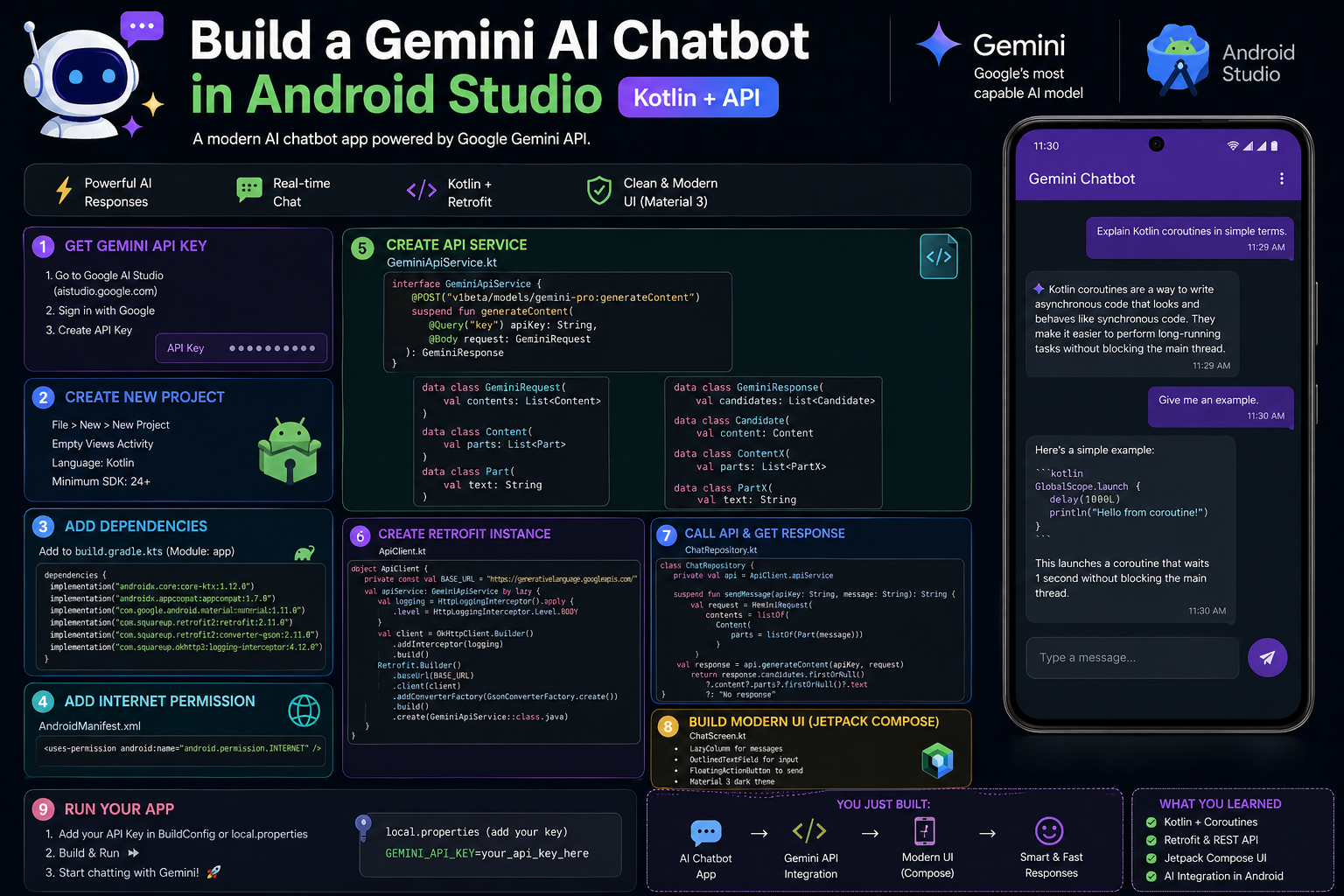
- Go to Google AI Studio: aistudio.google.com
- Sign in with your Google account
- Click “Get API key” button
- Click “Create API key”
- Copy your API key (starts with
AIza...)
Security Note: The official Google AI SDK documentation states: “The Google AI SDK for Android is recommended for prototyping only. If you plan to enable billing, we strongly recommend that you use a backend SDK to access the Google AI Gemini API. You risk potentially exposing your API key to malicious actors if you embed your API key directly in your Android app”
For production: Always route API calls through your own backend server.
Step 2: Create a New Android Project
- Open Android Studio → New Project
- Select “Empty Activity”
- Configure:
- Name:
GeminiChatbot - Package name:
com.example.geminichatbot - Language: Kotlin
- Minimum SDK: API 23
- Name:
- Click Finish
Step 3: Add Dependencies
Project-level build.gradle.kts
kotlin
// No special additions needed
App-level build.gradle.kts
kotlin
plugins {
    id("com.android.application")
    id("org.jetbrains.kotlin.android")
    id("kotlin-kapt")
    id("dagger.hilt.android.plugin")  // If using Hilt
}

android {
    namespace = "com.example.geminichatbot"
    compileSdk = 34

    defaultConfig {
        applicationId = "com.example.geminichatbot"
        minSdk = 23
        targetSdk = 34
        versionCode = 1
        versionName = "1.0"

        testInstrumentationRunner = "androidx.test.runner.AndroidJUnitRunner"

        // Add your API key here (temporary - move to local.properties)
        buildConfigField("String", "GEMINI_API_KEY", "\"YOUR_API_KEY_HERE\"")
    }

    buildTypes {
        release {
            isMinifyEnabled = false
            proguardFiles(
                getDefaultProguardFile("proguard-android-optimize.txt"),
                "proguard-rules.pro"
            )
        }
    }

    buildFeatures {
        viewBinding = true
        compose = true  // If using Jetpack Compose
    }

    composeOptions {
        kotlinCompilerExtensionVersion = "1.5.4"
    }

    compileOptions {
        sourceCompatibility = JavaVersion.VERSION_17
        targetCompatibility = JavaVersion.VERSION_17
    }

    kotlinOptions {
        jvmTarget = "17"
    }
}

dependencies {
    implementation("androidx.core:core-ktx:1.12.0")
    implementation("androidx.lifecycle:lifecycle-runtime-ktx:2.7.0")
    implementation("androidx.activity:activity-compose:1.8.0")

    // Jetpack Compose (if using Compose UI)
    implementation(platform("androidx.compose:compose-bom:2024.02.00"))
    implementation("androidx.compose.ui:ui")
    implementation("androidx.compose.ui:ui-graphics")
    implementation("androidx.compose.ui:ui-tooling-preview")
    implementation("androidx.compose.material3:material3")

    // ViewModel
    implementation("androidx.lifecycle:lifecycle-viewmodel-compose:2.7.0")

    // Coroutines
    implementation("org.jetbrains.kotlinx:kotlinx-coroutines-android:1.7.3")

    // Google AI SDK for Gemini [citation:1]
    implementation("com.google.ai.client.generativeai:generativeai:0.7.0")

    // Optional: For image loading
    implementation("io.coil-kt:coil-compose:2.5.0")
}
Step 4: Secure Your API Key
Create local.properties in project root:
properties
sdk.dir=/path/to/android/sdk
GEMINI_API_KEY=AIza...your-actual-api-key...
Update build.gradle.kts to read from local.properties:
kotlin
// At the top of app/build.gradle.kts
import com.android.build.gradle.internal.cxx.configure.gradleLocalProperties

android {
    // ... existing config ...

    defaultConfig {
        // ... existing config ...

        val apiKey = gradleLocalProperties(rootDir, providers).getProperty("GEMINI_API_KEY")
        buildConfigField("String", "GEMINI_API_KEY", "\"${apiKey}\"")
    }
}
Enable BuildConfig in android block:
kotlin
buildFeatures {
    buildConfig = true
}
Step 5: Create Data Model
model/ChatMessage.kt
kotlin
package com.example.geminichatbot.model

sealed class ChatMessage {
    data class User(
        val text: String,
        val timestamp: Long = System.currentTimeMillis()
    ) : ChatMessage()

    data class Bot(
        val text: String,
        val timestamp: Long = System.currentTimeMillis(),
        val isLoading: Boolean = false
    ) : ChatMessage()
}

data class ChatState(
    val messages: List<ChatMessage> = emptyList(),
    val isLoading: Boolean = false,
    val error: String? = null
)
Step 6: Create Gemini API Service
api/GeminiApiService.kt
kotlin
package com.example.geminichatbot.api

import com.google.ai.client.generativeai.GenerativeModel
import com.google.ai.client.generativeai.type.content
import com.google.ai.client.generativeai.type.generationConfig
import com.google.ai.client.generativeai.type.SafetySetting
import com.google.ai.client.generativeai.type.HarmCategory
import com.google.ai.client.generativeai.type.BlockThreshold
import com.example.geminichatbot.BuildConfig
import kotlinx.coroutines.flow.Flow
import kotlinx.coroutines.flow.flow
import kotlinx.coroutines.delay

class GeminiApiService {

    // Initialize the GenerativeModel [citation:1]
    private val generativeModel = GenerativeModel(
        modelName = "gemini-1.5-flash-001",  // or "gemini-1.5-pro-001" for better quality
        apiKey = BuildConfig.GEMINI_API_KEY,
        generationConfig = generationConfig {
            temperature = 0.7f      // Controls randomness (0.0 - 1.0)
            topK = 32               // Limits token selection pool
            topP = 0.95f            // Nucleus sampling
            maxOutputTokens = 2048  // Max response length
        },
        safetySettings = listOf(
            SafetySetting(HarmCategory.HARASSMENT, BlockThreshold.MEDIUM_AND_ABOVE),
            SafetySetting(HarmCategory.HATE_SPEECH, BlockThreshold.MEDIUM_AND_ABOVE),
            SafetySetting(HarmCategory.SEXUALLY_EXPLICIT, BlockThreshold.MEDIUM_AND_ABOVE),
            SafetySetting(HarmCategory.DANGEROUS_CONTENT, BlockThreshold.MEDIUM_AND_ABOVE)
        )
    )

    /**
     * Send a message and get response (non-streaming)
     */
    suspend fun sendMessage(userMessage: String): String {
        return try {
            val response = generativeModel.generateContent(userMessage)
            response.text ?: "Sorry, I couldn't generate a response."
        } catch (e: Exception) {
            "Error: ${e.localizedMessage ?: "Something went wrong"}"
        }
    }

    /**
     * Send message with streaming response (typewriter effect) [citation:1]
     */
    fun sendMessageStream(userMessage: String): Flow<String> = flow {
        try {
            var fullResponse = ""
            generativeModel.generateContentStream(userMessage).collect { chunk ->
                val text = chunk.text ?: ""
                if (text.isNotEmpty()) {
                    fullResponse += text
                    emit(text)  // Emit each chunk as it arrives
                }
            }
        } catch (e: Exception) {
            emit("Error: ${e.localizedMessage}")
        }
    }

    /**
     * Chat with history (multi-turn conversation) [citation:1]
     */
    suspend fun chatWithHistory(
        userMessage: String,
        history: List<Pair<String, String>>  // Pair(user, bot)
    ): String {
        // Build chat history in Content format
        val chat = generativeModel.startChat(
            history = buildChatHistory(history)
        )

        return try {
            val response = chat.sendMessage(userMessage)
            response.text ?: "No response generated."
        } catch (e: Exception) {
            "Error: ${e.message}"
        }
    }

    private fun buildChatHistory(history: List<Pair<String, String>>): List<com.google.ai.client.generativeai.type.Content> {
        val contents = mutableListOf<com.google.ai.client.generativeai.type.Content>()
        for ((userMsg, botMsg) in history) {
            if (userMsg.isNotBlank()) {
                contents.add(content(role = "user") { text(userMsg) })
            }
            if (botMsg.isNotBlank()) {
                contents.add(content(role = "model") { text(botMsg) })
            }
        }
        return contents
    }

    /**
     * Generate content from both text and image [citation:1]
     */
    @RequiresApi(Build.VERSION_CODES.O)
    suspend fun analyzeImage(imageBytes: ByteArray, prompt: String): String {
        return try {
            val inputContent = content {
                image(imageBytes)
                text(prompt)
            }
            val response = generativeModel.generateContent(inputContent)
            response.text ?: "Could not analyze the image."
        } catch (e: Exception) {
            "Error analyzing image: ${e.message}"
        }
    }
}
Step 7: Create ViewModel
ChatViewModel.kt
kotlin
package com.example.geminichatbot

import androidx.lifecycle.ViewModel
import androidx.lifecycle.viewModelScope
import com.example.geminichatbot.api.GeminiApiService
import com.example.geminichatbot.model.ChatMessage
import com.example.geminichatbot.model.ChatState
import kotlinx.coroutines.flow.MutableStateFlow
import kotlinx.coroutines.flow.StateFlow
import kotlinx.coroutines.flow.asStateFlow
import kotlinx.coroutines.flow.update
import kotlinx.coroutines.launch

class ChatViewModel : ViewModel() {

    private val apiService = GeminiApiService()

    private val _state = MutableStateFlow(ChatState())
    val state: StateFlow<ChatState> = _state.asStateFlow()

    /**
     * Send user message and get bot response
     */
    fun sendMessage(userInput: String) {
        if (userInput.isBlank()) return

        // Add user message
        _state.update { currentState ->
            currentState.copy(
                messages = currentState.messages + ChatMessage.User(userInput),
                isLoading = true,
                error = null
            )
        }

        viewModelScope.launch {
            val response = apiService.sendMessage(userInput)

            _state.update { currentState ->
                currentState.copy(
                    messages = currentState.messages + ChatMessage.Bot(response),
                    isLoading = false
                )
            }
        }
    }

    /**
     * Send message with streaming response (typewriter effect)
     */
    fun sendMessageStreaming(userInput: String) {
        if (userInput.isBlank()) return

        // Add user message
        _state.update { currentState ->
            currentState.copy(
                messages = currentState.messages + ChatMessage.User(userInput),
                isLoading = true,
                error = null
            )
        }

        viewModelScope.launch {
            var accumulatedResponse = ""

            // Add a placeholder bot message that will be updated
            _state.update { currentState ->
                currentState.copy(
                    messages = currentState.messages + ChatMessage.Bot("", isLoading = true),
                    isLoading = true
                )
            }

            var botMessageIndex = _state.value.messages.size - 1

            apiService.sendMessageStream(userInput).collect { chunk ->
                accumulatedResponse += chunk

                // Update the last message (bot's response)
                val updatedMessages = _state.value.messages.toMutableList()
                if (botMessageIndex < updatedMessages.size) {
                    updatedMessages[botMessageIndex] = ChatMessage.Bot(
                        text = accumulatedResponse,
                        isLoading = false
                    )
                    _state.update { it.copy(messages = updatedMessages, isLoading = false) }
                }
            }
        }
    }

    fun clearChat() {
        _state.update { ChatState() }
    }
}
Step 8: Create UI (Jetpack Compose)
ChatScreen.kt
kotlin
package com.example.geminichatbot

import androidx.compose.animation.*
import androidx.compose.foundation.background
import androidx.compose.foundation.layout.*
import androidx.compose.foundation.lazy.LazyColumn
import androidx.compose.foundation.lazy.items
import androidx.compose.foundation.lazy.rememberLazyListState
import androidx.compose.foundation.shape.CircleShape
import androidx.compose.foundation.shape.RoundedCornerShape
import androidx.compose.material.icons.Icons
import androidx.compose.material.icons.filled.Send
import androidx.compose.material3.*
import androidx.compose.runtime.*
import androidx.compose.ui.Alignment
import androidx.compose.ui.Modifier
import androidx.compose.ui.draw.clip
import androidx.compose.ui.graphics.Color
import androidx.compose.ui.text.font.FontWeight
import androidx.compose.ui.unit.dp
import androidx.compose.ui.unit.sp
import androidx.lifecycle.viewmodel.compose.viewModel
import com.example.geminichatbot.model.ChatMessage

@OptIn(ExperimentalMaterial3Api::class)
@Composable
fun ChatScreen(
    viewModel: ChatViewModel = viewModel()
) {
    val state by viewModel.state.collectAsState()
    var userInput by remember { mutableStateOf("") }
    val listState = rememberLazyListState()

    // Auto-scroll to bottom when new messages arrive
    LaunchedEffect(state.messages.size) {
        if (state.messages.isNotEmpty()) {
            listState.animateScrollToItem(state.messages.size - 1)
        }
    }

    Scaffold(
        topBar = {
            TopAppBar(
                title = {
                    Row(verticalAlignment = Alignment.CenterVertically) {
                        Text(
                            text = "Gemini AI Chatbot",
                            fontSize = 18.sp,
                            fontWeight = FontWeight.Bold
                        )
                        if (state.isLoading) {
                            CircularProgressIndicator(
                                modifier = Modifier.size(16.dp).padding(start = 8.dp),
                                strokeWidth = 2.dp
                            )
                        }
                    }
                },
                colors = TopAppBarDefaults.topAppBarColors(
                    containerColor = MaterialTheme.colorScheme.primaryContainer
                ),
                actions = {
                    IconButton(onClick = { viewModel.clearChat() }) {
                        Icon(
                            imageVector = Icons.Default.Send,  // Replace with delete icon in production
                            contentDescription = "Clear Chat"
                        )
                    }
                }
            )
        }
    ) { paddingValues ->
        Column(
            modifier = Modifier
                .fillMaxSize()
                .padding(paddingValues)
        ) {
            // Messages List
            LazyColumn(
                modifier = Modifier
                    .weight(1f)
                    .fillMaxWidth()
                    .padding(horizontal = 8.dp),
                state = listState,
                reverseLayout = false
            ) {
                items(state.messages) { message ->
                    ChatBubble(message)
                }

                // Loading indicator
                if (state.isLoading && state.messages.lastOrNull() !is ChatMessage.Bot) {
                    item {
                        Box(
                            modifier = Modifier
                                .fillMaxWidth()
                                .padding(8.dp),
                            contentAlignment = Alignment.CenterStart
                        ) {
                            CircularProgressIndicator(
                                modifier = Modifier.size(24.dp),
                                strokeWidth = 2.dp
                            )
                        }
                    }
                }
            }

            // Error message
            state.error?.let { error ->
                Text(
                    text = error,
                    color = MaterialTheme.colorScheme.error,
                    fontSize = 12.sp,
                    modifier = Modifier.padding(horizontal = 16.dp, vertical = 4.dp)
                )
            }

            // Input Field
            Row(
                modifier = Modifier
                    .fillMaxWidth()
                    .padding(8.dp),
                verticalAlignment = Alignment.Bottom
            ) {
                OutlinedTextField(
                    value = userInput,
                    onValueChange = { userInput = it },
                    modifier = Modifier.weight(1f),
                    placeholder = { Text("Ask me anything...") },
                    shape = RoundedCornerShape(24.dp),
                    maxLines = 4
                )

                Spacer(modifier = Modifier.width(8.dp))

                FloatingActionButton(
                    onClick = {
                        if (userInput.isNotBlank()) {
                            viewModel.sendMessageStreaming(userInput)
                            userInput = ""
                        }
                    },
                    shape = CircleShape,
                    containerColor = MaterialTheme.colorScheme.primary
                ) {
                    Icon(
                        imageVector = Icons.Default.Send,
                        contentDescription = "Send",
                        tint = Color.White
                    )
                }
            }
        }
    }
}

@Composable
fun ChatBubble(message: ChatMessage) {
    val isUser = message is ChatMessage.User

    Row(
        modifier = Modifier
            .fillMaxWidth()
            .padding(vertical = 4.dp),
        horizontalArrangement = if (isUser) Arrangement.End else Arrangement.Start
    ) {
        Card(
            shape = RoundedCornerShape(
                topStart = 16.dp,
                topEnd = 16.dp,
                bottomStart = if (isUser) 16.dp else 4.dp,
                bottomEnd = if (isUser) 4.dp else 16.dp
            ),
            colors = CardDefaults.cardColors(
                containerColor = if (isUser)
                    MaterialTheme.colorScheme.primaryContainer
                else
                    MaterialTheme.colorScheme.secondaryContainer
            ),
            modifier = Modifier.widthIn(max = 280.dp)
        ) {
            Text(
                text = message.text,
                modifier = Modifier.padding(12.dp),
                fontSize = 14.sp,
                color = if (isUser)
                    MaterialTheme.colorScheme.onPrimaryContainer
                else
                    MaterialTheme.colorScheme.onSecondaryContainer
            )
        }
    }
}
Step 9: Main Activity
MainActivity.kt
kotlin
package com.example.geminichatbot

import android.os.Bundle
import androidx.activity.ComponentActivity
import androidx.activity.compose.setContent
import androidx.compose.foundation.layout.fillMaxSize
import androidx.compose.material3.MaterialTheme
import androidx.compose.material3.Surface
import androidx.compose.ui.Modifier
import com.example.geminichatbot.ui.theme.GeminiChatbotTheme

class MainActivity : ComponentActivity() {
    override fun onCreate(savedInstanceState: Bundle?) {
        super.onCreate(savedInstanceState)
        setContent {
            GeminiChatbotTheme {
                Surface(
                    modifier = Modifier.fillMaxSize(),
                    color = MaterialTheme.colorScheme.background
                ) {
                    ChatScreen()
                }
            }
        }
    }
}
Step 10: Create Theme
Create ui/theme/Color.kt, Type.kt, Theme.kt or use the default theme.
Quick theme setup – Update your existing theme or add this:
kotlin
// In MainActivity.kt or separate Theme file
@Composable
fun GeminiChatbotTheme(
    darkTheme: Boolean = isSystemInDarkTheme(),
    dynamicColor: Boolean = true,
    content: @Composable () -> Unit
) {
    val colorScheme = when {
        dynamicColor && Build.VERSION.SDK_INT >= Build.VERSION_CODES.S -> {
            val context = LocalContext.current
            if (darkTheme) dynamicDarkColorScheme(context) else dynamicLightColorScheme(context)
        }
        darkTheme -> DarkColorScheme
        else -> LightColorScheme
    }

    MaterialTheme(
        colorScheme = colorScheme,
        typography = Typography(),
        content = content
    )
}

private val LightColorScheme = lightColorScheme(
    primary = Purple40,
    secondary = PurpleGrey40,
    tertiary = Pink40
)

private val DarkColorScheme = darkColorScheme(
    primary = Purple80,
    secondary = PurpleGrey80,
    tertiary = Pink80
)
Run the App
- Build the project:
Build → Make Project - Run on emulator or physical device:
Run → Run 'app' - Type a message and press send
- Watch the AI respond in real-time!
Sample App from Official Sources
Google provides an official sample app that demonstrates all these features. You can import it directly from Android Studio:
Troubleshooting
Model Options
| Model | Best For | Price |
|---|---|---|
gemini-1.5-flash | Fast responses, high volume | Free tier available |
gemini-1.5-pro | Complex reasoning, better quality | Free tier available |
gemini-1.0-pro | Legacy, stable | Free tier available |
Production Security Note
“If you plan to enable billing, we strongly recommend that you use a backend SDK to access the Google AI Gemini API. You risk potentially exposing your API key to malicious actors if you embed your API key directly in your Android app”
Production Architecture:
text
Android App → Your Backend Server (with API key) → Gemini API
📚 Next Steps
- Add image input capability using
content { image(bitmap) text(prompt) } - Implement voice input using Android Speech Recognizer
- Add persistence with Room to save chat history
- Add markdown rendering for code blocks and formatting
- Implement export/share conversation feature
