
Food Delivery App Clone (Zomato/Swiggy) – Complete Android Studio Tutorial

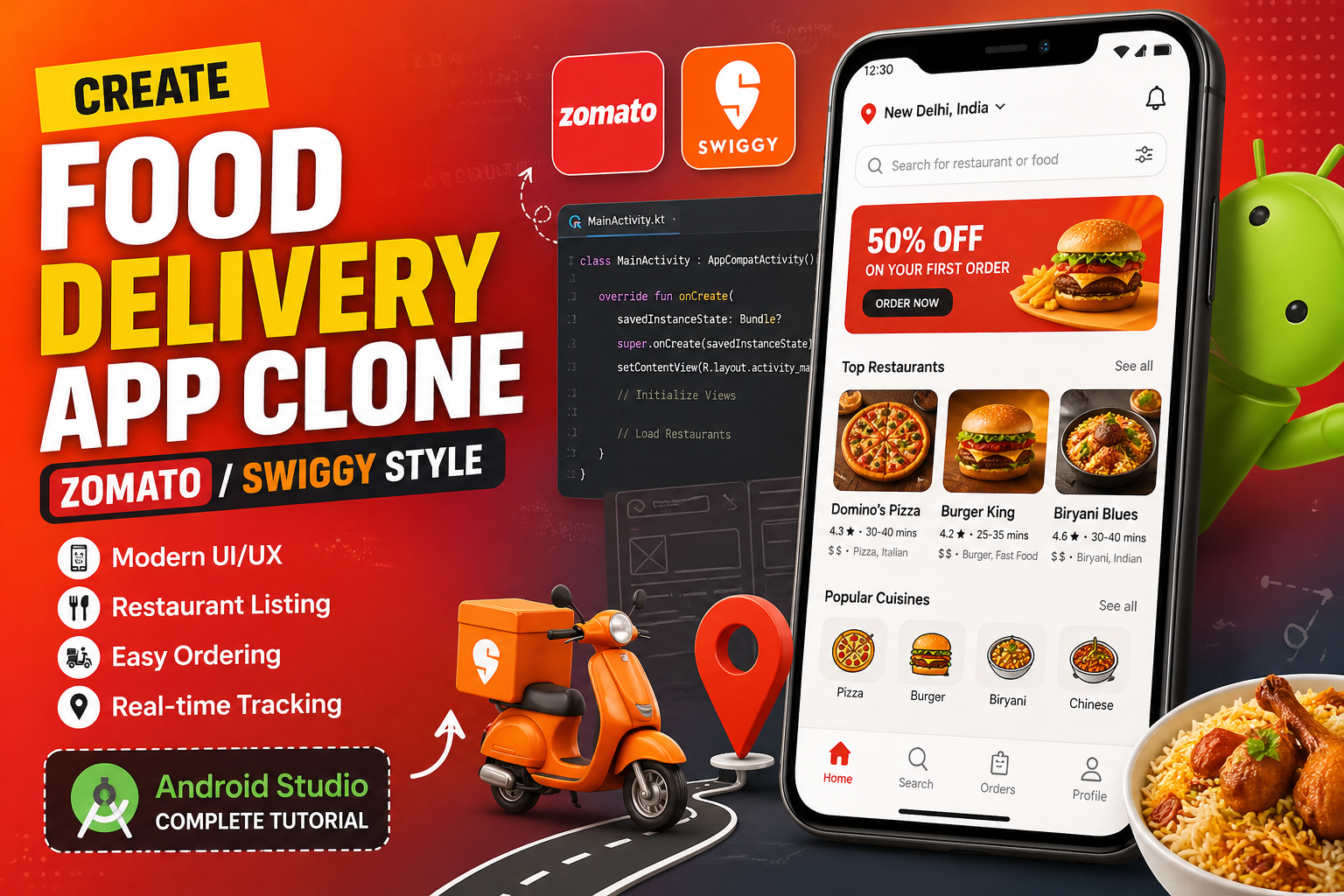
Food Delivery App Clone (Zomato/Swiggy) – Complete Android Studio Tutorial
Build a fully functional food delivery app with restaurant listing, cart, order tracking, and payment gateway demo using Java/Kotlin, Firebase, and Google Maps API.
App Overview
This tutorial will guide you through creating a complete food delivery application with two interfaces:
- User App – Browse restaurants, order food, track delivery
- Restaurant Admin Panel – Manage menu, update order status
Features You’ll Build
| Module | Features |
|---|---|
| Authentication | Email/Phone login, registration, profile management |
| Restaurant Discovery | Browse restaurants, search, filter by cuisine/price |
| Menu & Cart | Add/remove items, customize options, quantity picker |
| Order Placement | Place orders, select payment method, real-time status |
| Order Tracking | Live delivery tracking with Google Maps |
| Payment Gateway | Razorpay integration demo (UPI, Cards, Netbanking) |
| Admin Panel | Manage menu, update order status (pending/dispatched/delivered) |
Tech Stack
text
Frontend:     Android Studio (Java/Kotlin)
Backend:      Firebase Authentication + Firestore + Storage
Maps:         Google Maps API / Mapbox
Payments:     Razorpay SDK
Image Load:   Glide
Animations:   Lottie
Project Setup
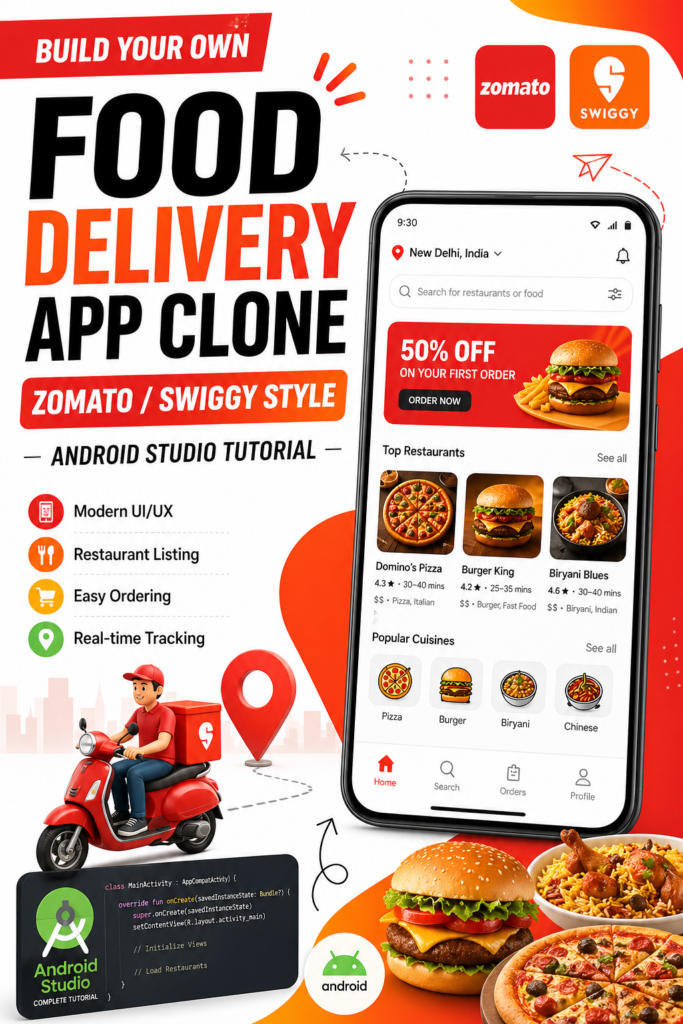
Step 1: Create Android Studio Project
kotlin
// Create new project with:
- Name: FoodDeliveryApp
- Package: com.example.fooddelivery
- Language: Kotlin (or Java)
- Minimum SDK: API 24 (Android 7.0)
- Template: Empty Views Activity
Step 2: Add Dependencies (build.gradle – app level)
kotlin
dependencies {
    implementation 'androidx.core:core-ktx:1.12.0'
    implementation 'androidx.appcompat:appcompat:1.6.1'
    implementation 'com.google.android.material:material:1.11.0'

    // Firebase
    implementation platform('com.google.firebase:firebase-bom:32.7.0')
    implementation 'com.google.firebase:firebase-auth-ktx'
    implementation 'com.google.firebase:firebase-firestore-ktx'
    implementation 'com.google.firebase:firebase-storage-ktx'

    // Google Maps
    implementation 'com.google.android.gms:play-services-maps:18.2.0'
    implementation 'com.google.android.gms:play-services-location:21.0.1'

    // Image Loading
    implementation 'com.github.bumptech.glide:glide:4.16.0'

    // Razorpay Payment
    implementation 'com.razorpay:checkout:1.6.39'

    // Lottie Animations
    implementation 'com.airbnb.android:lottie:6.2.0'

    // RecyclerView & CardView
    implementation 'androidx.recyclerview:recyclerview:1.3.2'
    implementation 'androidx.cardview:cardview:1.0.0'
}
Step 3: Firebase Configuration
- Create project on Firebase Console
- Register your Android app with package name
- Download
google-services.jsonand place inapp/folder - Enable Authentication (Email/Password and Phone)
- Create Firestore database (start in test mode)
- Enable Storage for restaurant images
Project Structure
text
app/src/main/java/com/example/fooddelivery/
├── activities/
│   ├── SplashActivity.kt
│   ├── LoginActivity.kt
│   ├── RegisterActivity.kt
│   ├── MainActivity.kt
│   ├── RestaurantDetailActivity.kt
│   ├── CartActivity.kt
│   ├── CheckoutActivity.kt
│   ├── OrderTrackingActivity.kt
│   └── AdminActivity.kt
├── adapters/
│   ├── RestaurantAdapter.kt
│   ├── MenuItemAdapter.kt
│   ├── CartAdapter.kt
│   └── OrderAdapter.kt
├── models/
│   ├── Restaurant.kt
│   ├── MenuItem.kt
│   ├── CartItem.kt
│   ├── Order.kt
│   └── User.kt
├── utils/
│   ├── FirebaseHelper.kt
│   └── LocationHelper.kt
└── fragments/
    ├── HomeFragment.kt
    ├── CartFragment.kt
    ├── OrdersFragment.kt
    └── ProfileFragment.kt
Core Implementation
1. Data Models
Restaurant.kt
kotlin
data class Restaurant(
    val id: String = "",
    val name: String = "",
    val imageUrl: String = "",
    val cuisine: String = "",
    val rating: Double = 0.0,
    val deliveryTime: Int = 30,
    val minOrder: Int = 99,
    val priceForTwo: Int = 300,
    val isOpen: Boolean = true,
    val location: GeoPoint? = null
)
MenuItem.kt
kotlin
data class MenuItem(
    val id: String = "",
    val restaurantId: String = "",
    val name: String = "",
    val description: String = "",
    val price: Int = 0,
    val imageUrl: String = "",
    val category: String = "",
    val isAvailable: Boolean = true,
    val addOns: List<AddOn> = emptyList()
)

data class AddOn(
    val name: String,
    val price: Int
)
Order.kt
kotlin
data class Order(
    val id: String = "",
    val userId: String = "",
    val restaurantId: String = "",
    val restaurantName: String = "",
    val items: List<CartItem> = emptyList(),
    val totalAmount: Int = 0,
    val status: String = "pending", // pending, confirmed, preparing, dispatched, delivered
    val paymentMethod: String = "",
    val paymentId: String = "",
    val deliveryAddress: String = "",
    val createdAt: Timestamp? = null,
    val deliveryLat: Double = 0.0,
    val deliveryLng: Double = 0.0
)
2. Firebase Integration
FirebaseHelper.kt
kotlin
class FirebaseHelper {
    private val db = FirebaseFirestore.getInstance()
    private val auth = FirebaseAuth.getInstance()

    // Load restaurants with real-time updates
    fun loadRestaurants(
        onSuccess: (List<Restaurant>) -> Unit,
        onError: (String) -> Unit
    ): ListenerRegistration {
        return db.collection("restaurants")
            .whereEqualTo("isOpen", true)
            .orderBy("rating", Query.Direction.DESCENDING)
            .limit(50)
            .addSnapshotListener { snapshot, error ->
                if (error != null) {
                    onError(error.message ?: "Error loading restaurants")
                    return@addSnapshotListener
                }

                val restaurants = snapshot?.toObjects(Restaurant::class.java) ?: emptyList()
                onSuccess(restaurants)
            }
    }

    // Load menu items for a restaurant
    fun loadMenuItems(
        restaurantId: String,
        onSuccess: (List<MenuItem>) -> Unit
    ) {
        db.collection("menuItems")
            .whereEqualTo("restaurantId", restaurantId)
            .whereEqualTo("isAvailable", true)
            .get()
            .addOnSuccessListener { snapshot ->
                val items = snapshot.toObjects(MenuItem::class.java)
                onSuccess(items)
            }
    }

    // Place order
    fun placeOrder(order: Order, onComplete: (Boolean, String) -> Unit) {
        db.collection("orders")
            .add(order)
            .addOnSuccessListener { docRef ->
                updateCartAfterOrder(order.userId)
                onComplete(true, docRef.id)
            }
            .addOnFailureListener {
                onComplete(false, it.message ?: "Order failed")
            }
    }

    // Track order in real-time
    fun trackOrder(
        orderId: String,
        onUpdate: (Order) -> Unit
    ): ListenerRegistration {
        return db.collection("orders")
            .document(orderId)
            .addSnapshotListener { snapshot, _ ->
                val order = snapshot?.toObject(Order::class.java)
                order?.let { onUpdate(it) }
            }
    }
}
3. Restaurant Listing with RecyclerView
RestaurantAdapter.kt
kotlin
class RestaurantAdapter(
    private var restaurants: List<Restaurant>,
    private val onItemClick: (Restaurant) -> Unit
) : RecyclerView.Adapter<RestaurantAdapter.ViewHolder>() {

    override fun onCreateViewHolder(parent: ViewGroup, viewType: Int): ViewHolder {
        val view = LayoutInflater.from(parent.context)
            .inflate(R.layout.item_restaurant, parent, false)
        return ViewHolder(view)
    }

    override fun onBindViewHolder(holder: ViewHolder, position: Int) {
        holder.bind(restaurants[position])
    }

    override fun getItemCount() = restaurants.size

    fun updateData(newList: List<Restaurant>) {
        restaurants = newList
        notifyDataSetChanged()
    }

    inner class ViewHolder(itemView: View) : RecyclerView.ViewHolder(itemView) {
        private val ivRestaurant: ImageView = itemView.findViewById(R.id.ivRestaurant)
        private val tvName: TextView = itemView.findViewById(R.id.tvName)
        private val tvCuisine: TextView = itemView.findViewById(R.id.tvCuisine)
        private val tvRating: TextView = itemView.findViewById(R.id.tvRating)
        private val tvDeliveryTime: TextView = itemView.findViewById(R.id.tvDeliveryTime)

        fun bind(restaurant: Restaurant) {
            tvName.text = restaurant.name
            tvCuisine.text = restaurant.cuisine
            tvRating.text = restaurant.rating.toString()
            tvDeliveryTime.text = "${restaurant.deliveryTime} mins"

            Glide.with(itemView.context)
                .load(restaurant.imageUrl)
                .placeholder(R.drawable.placeholder_food)
                .into(ivRestaurant)

            itemView.setOnClickListener { onItemClick(restaurant) }
        }
    }
}
Activity Layout (activity_main.xml)
xml
<?xml version="1.0" encoding="utf-8"?>
<androidx.constraintlayout.widget.ConstraintLayout
    xmlns:android="http://schemas.android.com/apk/res/android"
    xmlns:app="http://schemas.android.com/apk/res-auto"
    android:layout_width="match_parent"
    android:layout_height="match_parent">

    <!-- Search Bar -->
    <androidx.cardview.widget.CardView
        android:id="@+id/searchCard"
        android:layout_width="match_parent"
        android:layout_height="56dp"
        android:layout_margin="16dp"
        app:cardCornerRadius="28dp"
        app:cardElevation="4dp"
        app:layout_constraintTop_toTopOf="parent">

        <androidx.appcompat.widget.SearchView
            android:id="@+id/searchView"
            android:layout_width="match_parent"
            android:layout_height="match_parent"
            android:queryHint="Search restaurants or dishes..." />
    </androidx.cardview.widget.CardView>

    <!-- Restaurant List -->
    <androidx.recyclerview.widget.RecyclerView
        android:id="@+id/rvRestaurants"
        android:layout_width="match_parent"
        android:layout_height="0dp"
        android:layout_marginTop="8dp"
        android:clipToPadding="false"
        android:paddingBottom="80dp"
        app:layoutManager="androidx.recyclerview.widget.LinearLayoutManager"
        app:layout_constraintBottom_toBottomOf="parent"
        app:layout_constraintTop_toBottomOf="@id/searchCard" />

    <!-- Bottom Navigation -->
    <com.google.android.material.bottomnavigation.BottomNavigationView
        android:id="@+id/bottomNavigation"
        android:layout_width="match_parent"
        android:layout_height="wrap_content"
        app:layout_constraintBottom_toBottomOf="parent"
        app:menu="@menu/bottom_nav_menu" />

</androidx.constraintlayout.widget.ConstraintLayout>
4. Shopping Cart with Room Database (Local Storage)
CartDatabase.kt
kotlin
@Database(entities = [CartItemEntity::class], version = 1)
abstract class CartDatabase : RoomDatabase() {
    abstract fun cartDao(): CartDao

    companion object {
        @Volatile
        private var INSTANCE: CartDatabase? = null

        fun getInstance(context: Context): CartDatabase {
            return INSTANCE ?: synchronized(this) {
                val instance = Room.databaseBuilder(
                    context.applicationContext,
                    CartDatabase::class.java,
                    "cart_database"
                ).build()
                INSTANCE = instance
                instance
            }
        }
    }
}

@Dao
interface CartDao {
    @Query("SELECT * FROM cart_items WHERE restaurantId = :restaurantId")
    fun getCartItems(restaurantId: String): Flow<List<CartItemEntity>>

    @Insert(onConflict = OnConflictStrategy.REPLACE)
    suspend fun addToCart(item: CartItemEntity)

    @Query("DELETE FROM cart_items WHERE id = :itemId")
    suspend fun removeFromCart(itemId: String)

    @Query("UPDATE cart_items SET quantity = quantity + 1 WHERE id = :itemId")
    suspend fun incrementQuantity(itemId: String)

    @Query("UPDATE cart_items SET quantity = quantity - 1 WHERE id = :itemId")
    suspend fun decrementQuantity(itemId: String)

    @Query("DELETE FROM cart_items WHERE restaurantId = :restaurantId")
    suspend fun clearCart(restaurantId: String)

    @Query("SELECT SUM(price * quantity) FROM cart_items WHERE restaurantId = :restaurantId")
    fun getTotalAmount(restaurantId: String): Flow<Int>
}
5. Order Tracking with Google Maps
OrderTrackingActivity.kt
kotlin
class OrderTrackingActivity : AppCompatActivity(), OnMapReadyCallback {

    private lateinit var mMap: GoogleMap
    private lateinit var binding: ActivityOrderTrackingBinding
    private var orderId: String = ""
    private var deliveryPartnerLocation: LatLng = LatLng(0.0, 0.0)
    private var customerLocation: LatLng = LatLng(0.0, 0.0)
    private lateinit var firebaseHelper: FirebaseHelper

    override fun onCreate(savedInstanceState: Bundle?) {
        super.onCreate(savedInstanceState)
        binding = ActivityOrderTrackingBinding.inflate(layoutInflater)
        setContentView(binding.root)

        orderId = intent.getStringExtra("orderId") ?: ""
        firebaseHelper = FirebaseHelper()

        val mapFragment = supportFragmentManager
            .findFragmentById(R.id.map) as SupportMapFragment
        mapFragment.getMapAsync(this)

        setupOrderStatusListener()
    }

    private fun setupOrderStatusListener() {
        firebaseHelper.trackOrder(orderId) { order ->
            updateUI(order)

            when (order.status) {
                "pending" -> updateTrackingStatus("Order Placed", "Waiting for restaurant confirmation")
                "confirmed" -> updateTrackingStatus("Order Confirmed", "Restaurant is preparing your food")
                "preparing" -> updateTrackingStatus("Preparing", "Your food is being cooked")
                "dispatched" -> {
                    updateTrackingStatus("On the Way", "Delivery partner is coming")
                    startDeliveryTracking(order.deliveryLat, order.deliveryLng)
                }
                "delivered" -> updateTrackingStatus("Delivered", "Enjoy your meal!")
            }
        }
    }

    private fun updateTrackingStatus(title: String, subtitle: String) {
        binding.tvStatusTitle.text = title
        binding.tvStatusSubtitle.text = subtitle

        // Update progress indicator
        val statusOrder = listOf("pending", "confirmed", "preparing", "dispatched", "delivered")
        val currentIndex = statusOrder.indexOf(title.lowercase())
        binding.progressBar.progress = (currentIndex + 1) * 20
    }

    private fun startDeliveryTracking(lat: Double, lng: Double) {
        deliveryPartnerLocation = LatLng(lat, lng)
        updateMapWithRoute()

        // Simulate real-time location updates (in production, use FCM)
        Handler(Looper.getMainLooper()).postDelayed({
            // Update delivery partner location
            updateMapWithRoute()
        }, 5000)
    }

    private fun updateMapWithRoute() {
        mMap.clear()

        // Add marker for delivery partner
        mMap.addMarker(MarkerOptions()
            .position(deliveryPartnerLocation)
            .title("Delivery Partner")
            .icon(BitmapDescriptorFactory.fromResource(R.drawable.ic_delivery_boy)))

        // Add marker for customer
        mMap.addMarker(MarkerOptions()
            .position(customerLocation)
            .title("Your Location")
            .icon(BitmapDescriptorFactory.defaultMarker(BitmapDescriptorFactory.HUE_GREEN)))

        // Draw route between locations
        drawRoute(deliveryPartnerLocation, customerLocation)
    }

    private fun drawRoute(start: LatLng, end: LatLng) {
        // Use Directions API or Mapbox to draw polyline
        val url = "https://maps.googleapis.com/maps/api/directions/json?origin=${start.latitude},${start.longitude}&destination=${end.latitude},${end.longitude}&key=${getString(R.string.google_maps_key)}"

        // Fetch and draw polyline
        // Implementation using OkHttp + PolylineOptions
    }

    override fun onMapReady(googleMap: GoogleMap) {
        mMap = googleMap
        // Get current location and center map
    }
}
6. Razorpay Payment Integration
CheckoutActivity.kt
kotlin
class CheckoutActivity : AppCompatActivity(), PaymentResultListener {

    private lateinit var binding: ActivityCheckoutBinding
    private var totalAmount: Int = 0
    private lateinit var currentOrder: Order

    override fun onCreate(savedInstanceState: Bundle?) {
        super.onCreate(savedInstanceState)
        binding = ActivityCheckoutBinding.inflate(layoutInflater)
        setContentView(binding.root)

        totalAmount = intent.getIntExtra("totalAmount", 0)
        setupPaymentOptions()

        binding.btnPayNow.setOnClickListener {
            processPayment()
        }
    }

    private fun setupPaymentOptions() {
        val paymentOptions = listOf(
            PaymentOption("Credit/Debit Card", R.drawable.ic_card),
            PaymentOption("UPI", R.drawable.ic_upi),
            PaymentOption("Netbanking", R.drawable.ic_bank),
            PaymentOption("Wallet", R.drawable.ic_wallet),
            PaymentOption("Cash on Delivery", R.drawable.ic_cod)
        )

        // Setup RecyclerView for payment options
    }

    private fun processPayment() {
        val selectedMethod = getSelectedPaymentMethod()

        if (selectedMethod == "Cash on Delivery") {
            placeOrderWithCOD()
        } else {
            initiateRazorpayPayment()
        }
    }

    private fun initiateRazorpayPayment() {
        val co = Checkout()
        co.setKeyID("rzp_test_YOUR_KEY_ID") // Get from Razorpay Dashboard

        try {
            val options = JSONObject()
            options.put("name", "FoodDeliveryApp")
            options.put("description", "Order #${System.currentTimeMillis()}")
            options.put("currency", "INR")
            options.put("amount", totalAmount * 100) // Amount in paise

            val prefill = JSONObject()
            prefill.put("email", getCurrentUserEmail())
            prefill.put("contact", getCurrentUserPhone())
            options.put("prefill", prefill)

            co.open(this, options)
        } catch (e: Exception) {
            Toast.makeText(this, "Error: ${e.message}", Toast.LENGTH_SHORT).show()
        }
    }

    override fun onPaymentSuccess(razorpayPaymentID: String?) {
        // Payment successful, place order
        placeOrderWithPayment(razorpayPaymentID ?: "")
        Toast.makeText(this, "Payment Successful!", Toast.LENGTH_SHORT).show()
    }

    override fun onPaymentError(code: Int, response: String?) {
        Toast.makeText(this, "Payment Failed: $response", Toast.LENGTH_SHORT).show()
    }

    private fun placeOrderWithPayment(paymentId: String) {
        val order = createOrderObject()
        order.paymentMethod = getSelectedPaymentMethod()
        order.paymentId = paymentId
        order.status = "confirmed"

        FirebaseHelper().placeOrder(order) { success, message ->
            if (success) {
                startActivity(Intent(this, OrderTrackingActivity::class.java)
                    .putExtra("orderId", message))
                finish()
            } else {
                Toast.makeText(this, message, Toast.LENGTH_SHORT).show()
            }
        }
    }
}
7. Admin Panel for Restaurant Owners
AdminActivity.kt
kotlin
class AdminActivity : AppCompatActivity() {

    private lateinit var binding: ActivityAdminBinding
    private lateinit var menuAdapter: MenuItemAdapter
    private lateinit var ordersAdapter: OrderAdapter

    override fun onCreate(savedInstanceState: Bundle?) {
        super.onCreate(savedInstanceState)
        binding = ActivityAdminBinding.inflate(layoutInflater)
        setContentView(binding.root)

        setupTabs()
        loadPendingOrders()
        loadMenuItems()

        binding.fabAddItem.setOnClickListener {
            showAddMenuItemDialog()
        }
    }

    private fun loadPendingOrders() {
        val restaurantId = getCurrentRestaurantId()

        FirebaseFirestore.getInstance()
            .collection("orders")
            .whereEqualTo("restaurantId", restaurantId)
            .whereIn("status", listOf("pending", "confirmed", "preparing"))
            .orderBy("createdAt", Query.Direction.DESCENDING)
            .addSnapshotListener { snapshot, _ ->
                val orders = snapshot?.toObjects(Order::class.java) ?: emptyList()
                ordersAdapter.updateData(orders)
            }
    }

    private fun updateOrderStatus(orderId: String, newStatus: String) {
        FirebaseFirestore.getInstance()
            .collection("orders")
            .document(orderId)
            .update("status", newStatus)
            .addOnSuccessListener {
                Toast.makeText(this, "Order status updated", Toast.LENGTH_SHORT).show()
            }
    }

    private fun showAddMenuItemDialog() {
        val dialog = AlertDialog.Builder(this)
            .setTitle("Add Menu Item")
            .setView(layoutInflater.inflate(R.layout.dialog_add_menu_item, null))
            .setPositiveButton("Add") { _, _ ->
                // Handle adding menu item to Firestore
            }
            .show()
    }
}
Payment Gateway Setup (Razorpay)
Step-by-Step Integration
- Register on Razorpay Dashboard – Get your API keys (Key ID and Key Secret)
- Add dependency in build.gradle:
kotlin
implementation 'com.razorpay:checkout:1.6.39'
- Generate Order ID from your backend (or Firebase Cloud Function):
javascript
// Firebase Cloud Function example
exports.createRazorpayOrder = functions.https.onCall(async (data, context) => {
    const instance = new Razorpay({
        key_id: 'YOUR_KEY_ID',
        key_secret: 'YOUR_KEY_SECRET'
    });

    const options = {
        amount: data.amount * 100,
        currency: 'INR',
        receipt: `receipt_${Date.now()}`
    };

    const order = await instance.orders.create(options);
    return { orderId: order.id };
});
Google Maps Setup
- Get API key from Google Cloud Console
- Enable Maps SDK for Android and Directions API
- Add API key to
AndroidManifest.xml:
xml
<meta-data
    android:name="com.google.android.geo.API_KEY"
    android:value="YOUR_API_KEY" />
Firebase Security Rules
Firestore Rules
javascript
rules_version = '2';
service cloud.firestore {
  match /databases/{database}/documents {
    // Restaurants - public read
    match /restaurants/{document} {
      allow read: if true;
      allow write: if request.auth != null &&
        request.auth.token.isAdmin == true;
    }

    // Menu Items - public read
    match /menuItems/{document} {
      allow read: if true;
      allow write: if request.auth != null &&
        (request.auth.uid == resource.data.ownerId ||
         request.auth.token.isAdmin == true);
    }

    // Orders - users can read their own, admins can read all
    match /orders/{document} {
      allow read: if request.auth != null &&
        (request.auth.uid == resource.data.userId ||
         request.auth.token.isAdmin == true);
      allow create: if request.auth != null;
      allow update: if request.auth != null &&
        (request.auth.uid == resource.data.userId ||
         request.auth.token.isAdmin == true);
    }
  }
}
Storage Rules
text
rules_version = '2';
service firebase.storage {
  match /b/{bucket}/o {
    match /restaurants/{image} {
      allow read: if true;
      allow write: if request.auth != null;
    }
  }
}
Complete Project Repository
Clone one of these open-source projects for reference:
| Project | Tech Stack | Features |
|---|---|---|
| Munche | Java/Kotlin + Firebase + Mapbox | Phone auth, UPI/Paytm/COD, route generation |
| Wave of Food | Kotlin + Firebase + Razorpay | User + Admin apps, order tracking |
| Food Delivery App | Java + Firebase + Google Maps | Nearby restaurants, location integration |
Deployment Checklist
- Add
google-services.jsonto app folder - Add Google Maps API key
- Add Razorpay API keys
- Enable Firebase Authentication (Email/Phone)
- Set up Firestore indexes for queries
- Test with multiple devices/emulators
- Implement ProGuard rules for release build
Next Steps & Enhancements
- Push Notifications – Using Firebase Cloud Messaging for order updates
- In-App Chat – Between customer and delivery partner
- Loyalty Program – Reward points and discounts
- Multi-language Support – Using Android’s localization
- Rating & Reviews – For restaurants and delivery partners
